How to Convert a User Mailbox to a Shared Mailbox in Microsoft 365: The MSP Guide (2026)

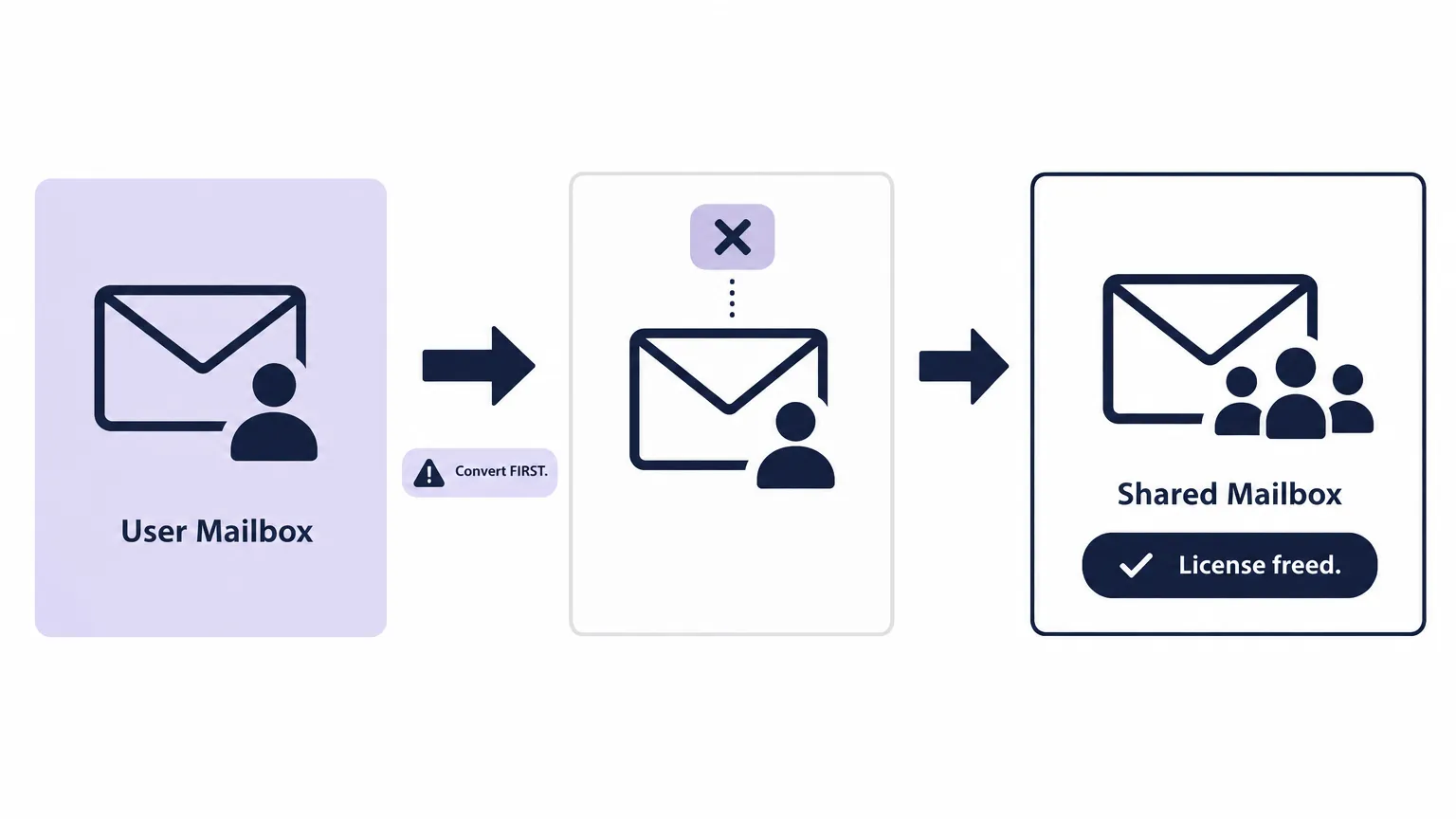
For MSPs, converting a user mailbox to a shared mailbox is routine work. It happens every time an employee leaves and their email address needs to live on. It happens when a team inbox outgrows its original owner, when a role changes hands, or when a client finally decides that "billing@" should not be tied to one person who might quit next month.
Done right, the conversion takes three minutes and frees up a license. Done wrong - with the license removed before the conversion - Microsoft starts a 30-day deletion clock that can silently wipe the inbox while the ticket is still marked closed.
This guide covers the full workflow: Exchange Admin Center, PowerShell, CIPP for multi-tenant environments, the licensing edge cases that generate repeat tickets, bulk conversion, and where automation fits when you're doing this at volume.
TL;DR
The rule: Convert to shared before removing the license. That sequence protects the data. Reverse it and you have 30 days before the mailbox is permanently deleted.
After conversion:
- Shared mailboxes under 50 GB do not need a license
- 50-100 GB requires Exchange Online Plan 2
- Litigation hold or archiving requires Exchange Online Plan 2 (or Plan 1 + Exchange Online Archiving add-on)
- Block sign-in on the underlying account
- Set Full Access and Send As permissions for anyone who needs access
- Tell the user to expect up to 60 minutes before the mailbox appears
Convert vs Create: Which Do You Actually Need?
Before touching the Exchange Admin Center, confirm the right approach. MSPs deal with both scenarios, and mixing them up means extra cleanup work.
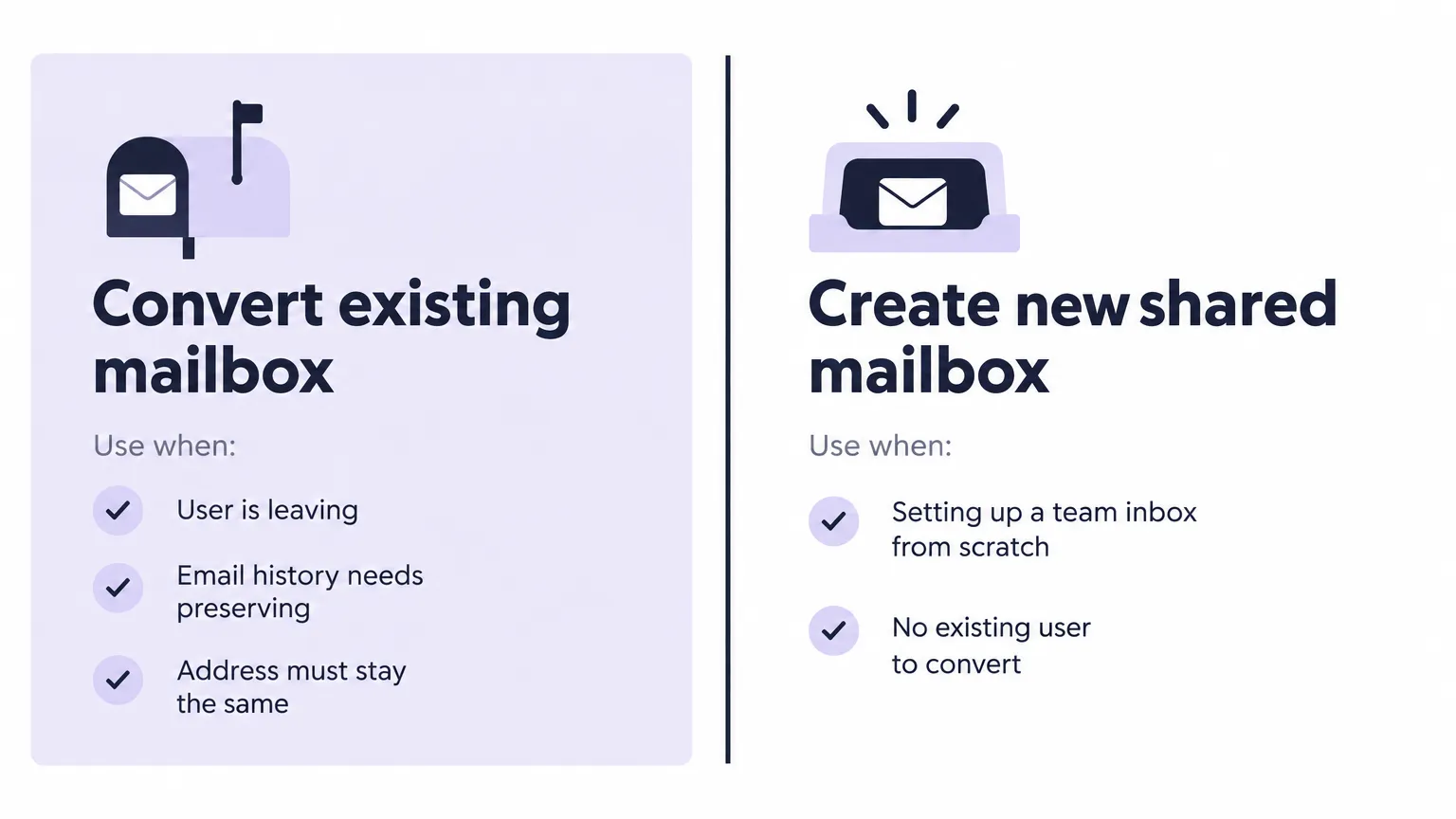
Convert an existing user mailbox when:
- An employee is leaving and their email history needs to be preserved
- The email address (like
john.smith@company.comorsupport@company.com) must stay the same - Existing email threads, contacts, or calendar data belong to the shared mailbox going forward
- The client wants their PSA notes and documentation tied to a single mailbox identity over time
Create a new shared mailbox when:
- Setting up a team inbox from scratch (a new department, a new address, a new function)
- No existing user mailbox has the right address
- There is no email history to preserve
Most conversion requests in MSP tickets are the first case - a departing employee, a role change, or a cleanup exercise. Creating a new shared mailbox is straightforward and covered in Microsoft's setup guide. The rest of this post covers converting an existing one.
The Sequencing Rule Every MSP Gets Wrong
This is where most incidents start. The intuitive sequence is "clean up the license first, then do the mailbox thing." That intuition is wrong.
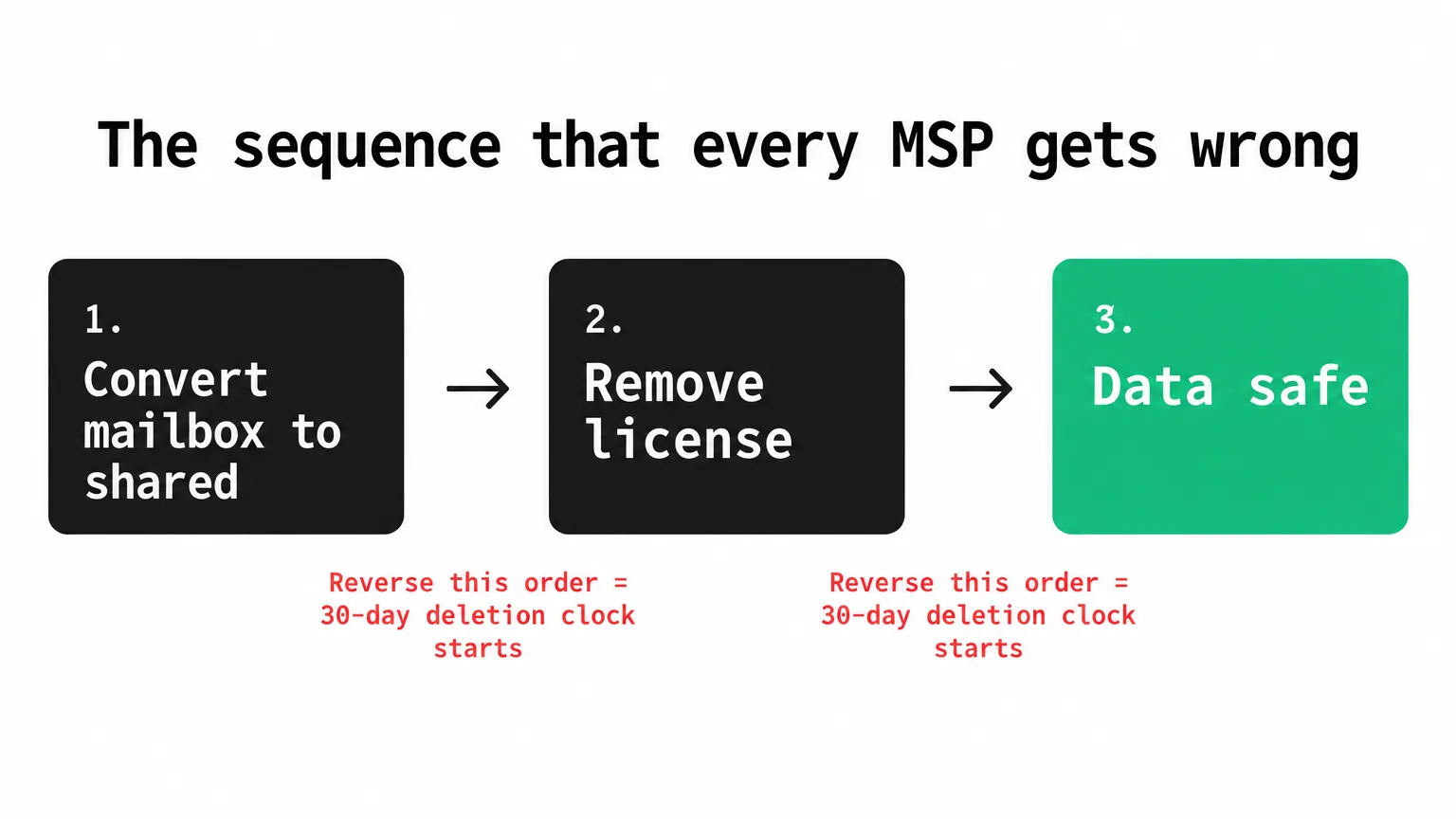
Correct order:
- Convert the mailbox to shared (Exchange Admin Center or PowerShell)
- Remove the license
Wrong order:
- Remove the license
- Convert the mailbox... eventually
Removing the license first does not immediately delete the mailbox. Microsoft gives it a 30-day grace period. But the clock starts immediately, and in a busy MSP that clock expires unnoticed. If the conversion does not happen within those 30 days, the mailbox - and everything in it - is permanently deleted with no recovery path.
The right fix is simple: make conversion the first step. It costs nothing extra and eliminates the risk entirely.
Method 1: Exchange Admin Center
The admin center route works for one-off conversions and is the right choice when you are walking a client's internal admin through the steps.
- Sign in to the Exchange Admin Center
- Go to Recipients > Mailboxes
- Select the mailbox you are converting
- Under More actions (the three-dot menu), select Convert to shared mailbox
- Confirm the conversion
The conversion runs in the background and usually completes within a few minutes. Once it finishes, go to the Microsoft 365 admin center and remove the license from the user account: Users > Active Users > select the user > Licenses and Apps > uncheck the license > Save.
Do not delete the user account. The user object stays as the identity behind the shared mailbox. Deleting it will also delete the mailbox.
Method 2: PowerShell
PowerShell is faster for single conversions once you have Exchange Online Management installed, and it is the only practical path for bulk work.
Connect first:
Install-Module -Name ExchangeOnlineManagement
Import-Module ExchangeOnlineManagement
Connect-ExchangeOnline
Convert the mailbox:
Set-Mailbox -Identity "john.smith@contoso.com" -Type Shared
Remove the license (using Microsoft Graph PowerShell):
Get-MgUserLicenseDetail -UserId "john.smith@contoso.com"

Set-MgUserLicense -UserId "john.smith@contoso.com" -RemoveLicenses @("SkuId-here") -AddLicenses @()
Block sign-in (covered in the edge cases section below):
Update-MgUser -UserId "john.smith@contoso.com" -AccountEnabled $false
Verify the conversion completed:
Get-Mailbox -Identity "john.smith@contoso.com" | Select-Object RecipientTypeDetails, ProhibitSendQuota
RecipientTypeDetails should return SharedMailbox. If it still shows UserMailbox, wait a few minutes and check again - the conversion is asynchronous.
Method 3: CIPP for Multi-Tenant Environments
If you manage more than a handful of tenants, clicking through the Exchange Admin Center per tenant adds up fast. CIPP (the Community-built Microsoft 365 management platform) surfaces most Exchange Online actions across tenants in a single interface. For a full walkthrough of what CIPP can do for MSP multi-tenant management, see the CIPP for Microsoft 365 guide.
The conversion workflow in CIPP follows the same logic: find the user, convert, then remove the license. The advantage is not needing to log in to each tenant's Exchange Admin Center separately.
Edge Cases That Generate Repeat Tickets
The 50 GB Licensing Wall
Shared mailboxes look free, but the free part ends at 50 GB.
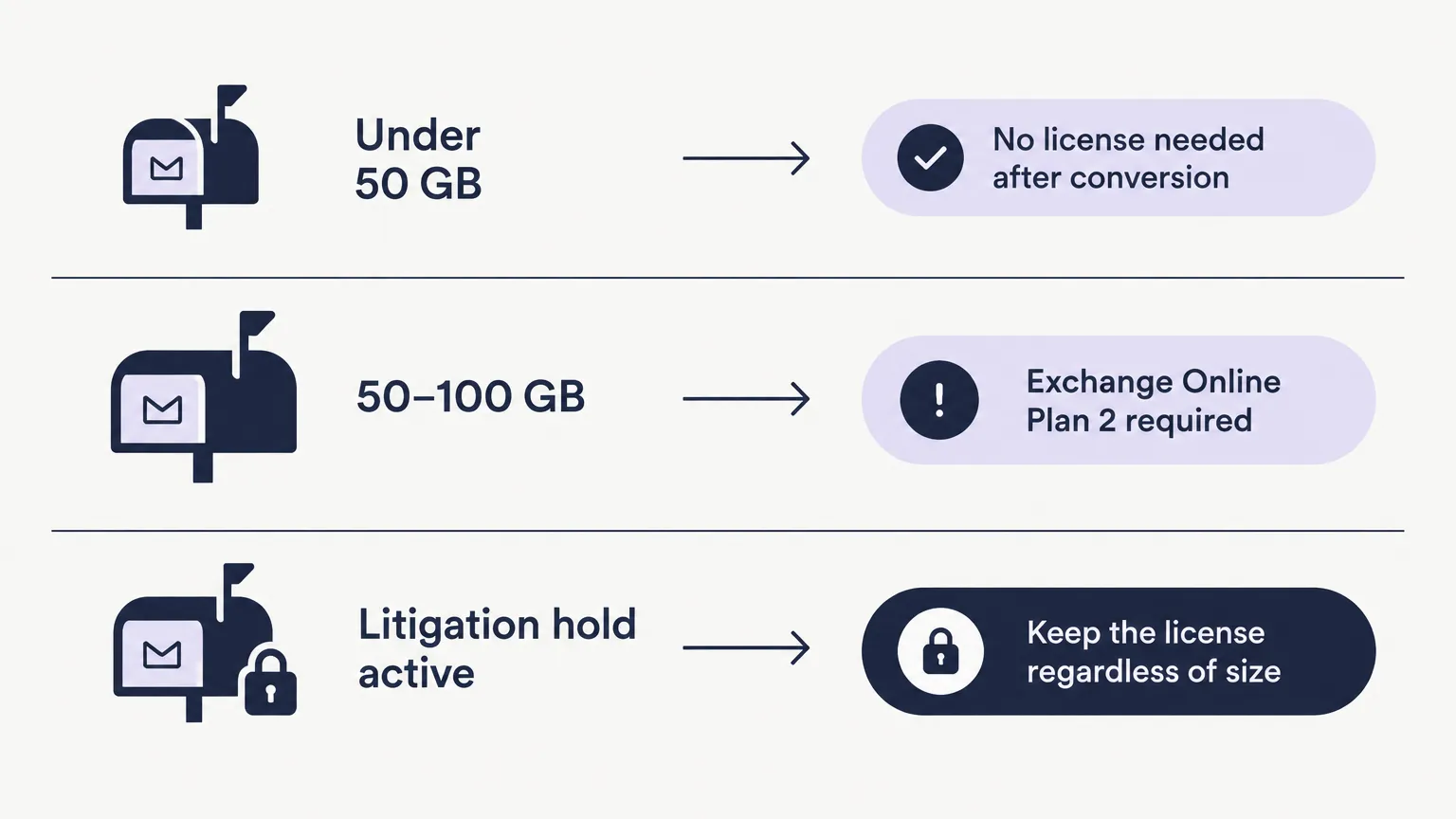
- Under 50 GB: No license required after conversion. This is the common case for most departed-employee mailboxes.
- 50 GB to 100 GB: Needs an Exchange Online Plan 2 license. Without it, the mailbox stops sending first, then stops receiving, and senders get a non-delivery receipt.
Check the mailbox size before removing the license. The simplest check in PowerShell:
Get-MailboxStatistics -Identity "john.smith@contoso.com" | Select-Object TotalItemSize
If the client's mailbox is over 50 GB, factor the license cost into the conversation before conversion. Discovering this after the license is removed and the mailbox starts bouncing is an avoidable incident.
Litigation Hold and Archiving
A mailbox under litigation hold always needs a license - regardless of size. The same applies to in-place archiving.
If the mailbox has either feature active, it needs Exchange Online Plan 2 (or Exchange Online Plan 1 with the Exchange Online Archiving add-on) even after conversion to shared. Removing the license deactivates the hold and can affect compliance obligations. Confirm with the client before changing anything.
Check whether litigation hold is active:
Get-Mailbox -Identity "john.smith@contoso.com" | Select-Object LitigationHoldEnabled, InPlaceHolds
If LitigationHoldEnabled is True, do not remove the license without a clear sign-off from the client on the compliance implications.
The Orphaned User Object
After conversion, the original user account remains. It is now a mail-enabled user with no active mailbox of its own. This is correct behavior and expected.
What is not correct: leaving that account with sign-in enabled. Every shared mailbox has an underlying user account with a system-generated password. Microsoft's guidance is to block sign-in on that account immediately after conversion - and to keep it blocked.
Update-MgUser -UserId "john.smith@contoso.com" -AccountEnabled $false
Failing to block sign-in means the account is a live credential with a password nobody manages. On tenants you inherit, it is worth auditing all shared mailboxes for this.
Mobile Access
Shared mailboxes do not sign in cleanly on mobile devices by default - the mailbox does not have credentials in the conventional sense. If a user needs to access the shared mailbox from their phone as if it were a personal account (not just an added mailbox in Outlook), the common MSP workaround is to unblock sign-in temporarily, reset the shared mailbox's password to something known, and add it as a separate account in the mobile Outlook client.
This is a workaround, not a first-line recommendation. Document it clearly in the client's runbook if you set it up, because it means the shared mailbox account has an active password that someone needs to manage.
Accounts That Were Set Up as Shared Mailboxes by Mistake
On tenants you inherit, you may find live user accounts that are typed as shared mailboxes - accounts that should have been regular user mailboxes but were created wrong. These accounts cannot sign in and have no license. The fix is to convert them back: Set-Mailbox -Identity "address" -Type Regular, then assign a license. Check for this during any tenant health review.
Bulk Conversion: PowerShell from CSV
Clicking through the Exchange Admin Center for 30 departing employees is not an MSP workflow. The PowerShell approach scales.
Prepare a CSV with a column named EmailAddress:
EmailAddress
john.smith@contoso.com
jane.doe@contoso.com
old.cfo@contoso.com
Convert all of them:
Connect-ExchangeOnline

$mailboxes = Import-Csv "mailboxes-to-convert.csv"

foreach ($mb in $mailboxes) {
    Write-Host "Converting $($mb.EmailAddress)..."
    Set-Mailbox -Identity $mb.EmailAddress -Type Shared
}

Write-Host "Conversion complete. Wait a few minutes, then remove licenses."
Remove licenses in a separate pass - do not combine with the conversion loop. Wait for the conversions to complete first (verify with Get-Mailbox | Select RecipientTypeDetails on each), then remove licenses. Combining both in a single loop risks removing the license before the conversion finishes, which starts the deletion clock on a mailbox that is not yet protected.
The 60-Minute Propagation Window
Converting the mailbox to shared and granting permissions are two separate steps. After you grant Full Access or Send As permissions to users who need access, Microsoft says those changes can take up to 60 minutes to propagate.
The practical consequence: a user who calls back ten minutes after you close the ticket saying "I still can not see the mailbox" is not reporting a failure. They are reporting a propagation delay.
The fix is to set the expectation before closing. Include it in every closing note or reply:
"The shared mailbox permissions can take up to 60 minutes to appear. If the mailbox is not visible after an hour, let us know and we will investigate."
That one line eliminates most reopen tickets on this category.
Shared Mailbox Permissions After Conversion
Conversion makes the mailbox shared. Access to it still needs to be granted explicitly. The three permission types are Full Access (read and manage the mailbox), Send As (send mail as the shared mailbox address), and Send on Behalf (send with their own name shown as sender). Most access requests need Full Access plus Send As.
The full breakdown of how to grant each permission, the PowerShell commands, and the limits (including the automapping behavior for group-based grants) is in the shared mailbox permissions guide for MSPs.
Where This Fits in Employee Offboarding
Mailbox conversion is usually not a standalone ticket. It is one step in a broader offboarding workflow that also includes disabling the account, revoking sessions, removing groups, reclaiming the license, and updating documentation.
The sequencing matters across the whole workflow, not just for the mailbox. Here is where conversion fits:
- Disable the user account (block sign-in, revoke sessions)
- Remove from distribution groups and security groups
- Convert the mailbox to shared
- Remove the license
- Update documentation and PSA
Most MSPs find that the license removal happens too early - either before conversion, or before the client confirms who needs access to the mailbox and for how long. Building the conversion step into a formal offboarding checklist or runbook removes the ambiguity.
For a complete M365 offboarding walkthrough including automating the whole sequence, see the Microsoft 365 user offboarding guide for MSPs.
Why a Simple Conversion Takes 15 Minutes
The technical steps are three commands or five admin center clicks. The time disappears elsewhere.
Finding the right account in Entra ID when the client calls them by their first name. Confirming which tenant "contoso" means - you manage eight clients with similar names. Working out whether the mailbox needs to be retained for compliance, or just converted and licensed down. Pinging the manager to confirm the user has actually left. Making the change. Going back to the PSA to write notes, add time, and message the user with the 60-minute caveat.
That is six or seven touches for a one-line outcome, with the PSA, Exchange Admin Center, and sometimes Entra ID all open at the same time. At 15 minutes per conversion and several per week across a book of clients, the hours add up fast. For how that compares with L1 ticket costs across MSPs, the per-hour math is worse than it looks from the ticket alone.
Automate It with Rallied
Rallied is an AI technician that resolves L1/L2 tickets directly in your PSA. For mailbox conversion requests, it reads the ticket in ConnectWise, HaloPSA, or Autotask, checks the client's live M365 tenant, runs the conversion in the correct sequence, removes the license after conversion completes, and writes the notes and time entry back to the ticket before closing.
What Rallied handles on a mailbox conversion ticket:
- Identifying the correct account in Entra ID from the name in the ticket
- Checking the mailbox size against the 50 GB threshold
- Converting the mailbox to shared first (before any license change)
- Removing the license after conversion confirms
- Blocking sign-in on the underlying account
- Writing a closing note to the user with the 60-minute propagation caveat
- Logging time and notes back to the PSA ticket
For a standalone conversion where Rallied looks up the user and changes the mailbox type in M365, that is a Standard ticket (3 credits). When the conversion is part of a full offboarding - disabling the account, revoking sessions, removing groups, reclaiming the license, updating the Pax8 subscription - that runs as a Complex ticket (8 credits).
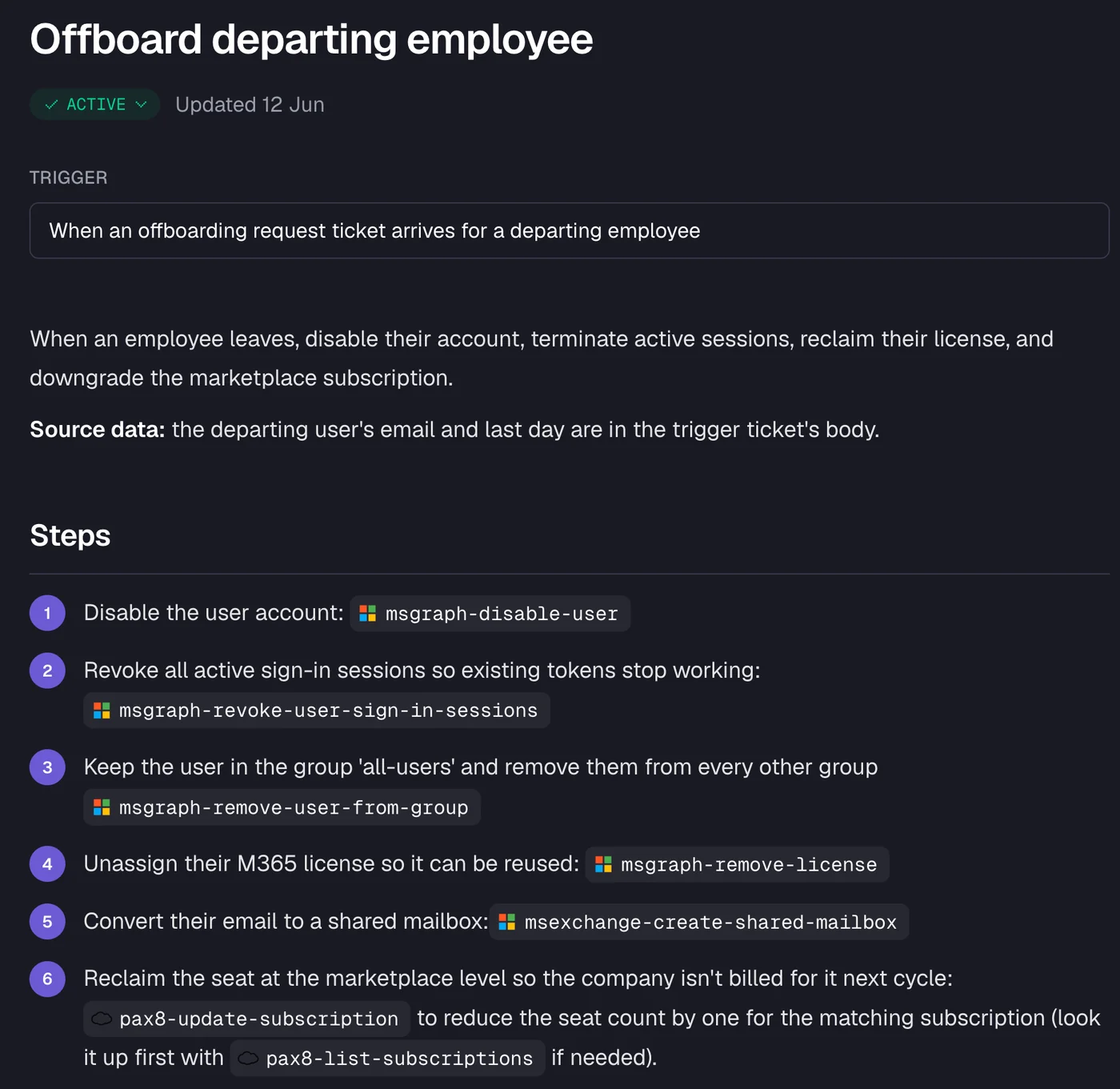
The automated offboarding workflow handles the full sequence atomically - the license removal and mailbox conversion happen in the same run, so the 30-day deletion clock risk disappears. There is no second step for a tech to forget. The correct order is enforced by the runbook every time.
Rallied runs on a single plan: $300 per month with 2,000 credits included. Credits roll over for one month. Diagnosis and triage are free - you only pay when Rallied changes something in your systems. At roughly 2.7 credits per charged ticket on average, $300 covers about 700 tickets a month. Everything Rallied can do in a customer's M365 tenant is listed on the Microsoft 365 automation page.
A CTO at Cyber Solutions using Rallied tracked 232 hours on printer tickets in one month. For mailbox conversion, the volume is lower, but the pattern is the same: routine work that lands on a tech's queue, gets interrupted, gets done in the wrong order, or just takes longer than it should.
Request a demo to see Rallied handle a mailbox conversion ticket from start to finish.
Related Reading
- Shared mailbox permissions in M365: the MSP guide - Full Access, Send As, Send on Behalf, PowerShell, group grants, and the limits that catch MSPs out
- Microsoft 365 user offboarding for MSPs - Complete offboarding checklist with the sequencing rules across all steps
- CIPP for Microsoft 365: the MSP guide to multi-tenant management - Managing Exchange actions across tenants without logging into each one
- Office 365 user provisioning - New user setup, where group membership fits, and what to automate
- How MSPs automate user onboarding in 2026 - The provisioning side of the lifecycle that offboarding reverses
Frequently Asked Questions
What happens if I remove the license before converting the mailbox to shared?
Microsoft starts a 30-day deletion countdown the moment a licensed mailbox loses its license without being converted first. If you do not convert within those 30 days, the mailbox and all its data are permanently deleted. Always convert to shared before removing the license.
Does a shared mailbox need a license after conversion?
A shared mailbox under 50 GB does not need a license after conversion. If the mailbox is between 50 GB and 100 GB, it needs an Exchange Online Plan 2 license. If the mailbox is under litigation hold or requires in-place archiving, it also needs Exchange Online Plan 2 (or Plan 1 with the Exchange Online Archiving add-on) regardless of size.
What is the PowerShell command to convert a user mailbox to a shared mailbox?
Connect to Exchange Online PowerShell, then run: Set-Mailbox -Identity 'jane.doe' -Type Shared. After the conversion completes, remove the license from the user account in the Microsoft 365 admin center or via the Graph API.
How long does it take for shared mailbox permissions to apply?
Microsoft says permission changes can take up to 60 minutes to propagate. Include this in your closing note to the user so the ticket does not reopen when the mailbox does not appear immediately.
Can I convert multiple user mailboxes to shared mailboxes at once?
Yes. Connect to Exchange Online PowerShell, import a CSV with the mailbox addresses, loop through each row with Set-Mailbox -Type Shared, then remove the licenses in a separate pass. This avoids clicking through the Exchange Admin Center one mailbox at a time.