How to offboard a user in Microsoft 365: the complete MSP guide (2026)

TL;DR
M365 user offboarding has seven mandatory steps: block sign-in, revoke active sessions, handle the mailbox, deal with OneDrive and files, remove group memberships, free the license, and create an audit trail. The sequence matters - remove the license before converting the mailbox and Microsoft starts a 30-day deletion clock. Most MSPs get the first two steps right and lose consistency everywhere after that, which is how you end up with 10-20% of customer licenses billing for accounts that left months ago.
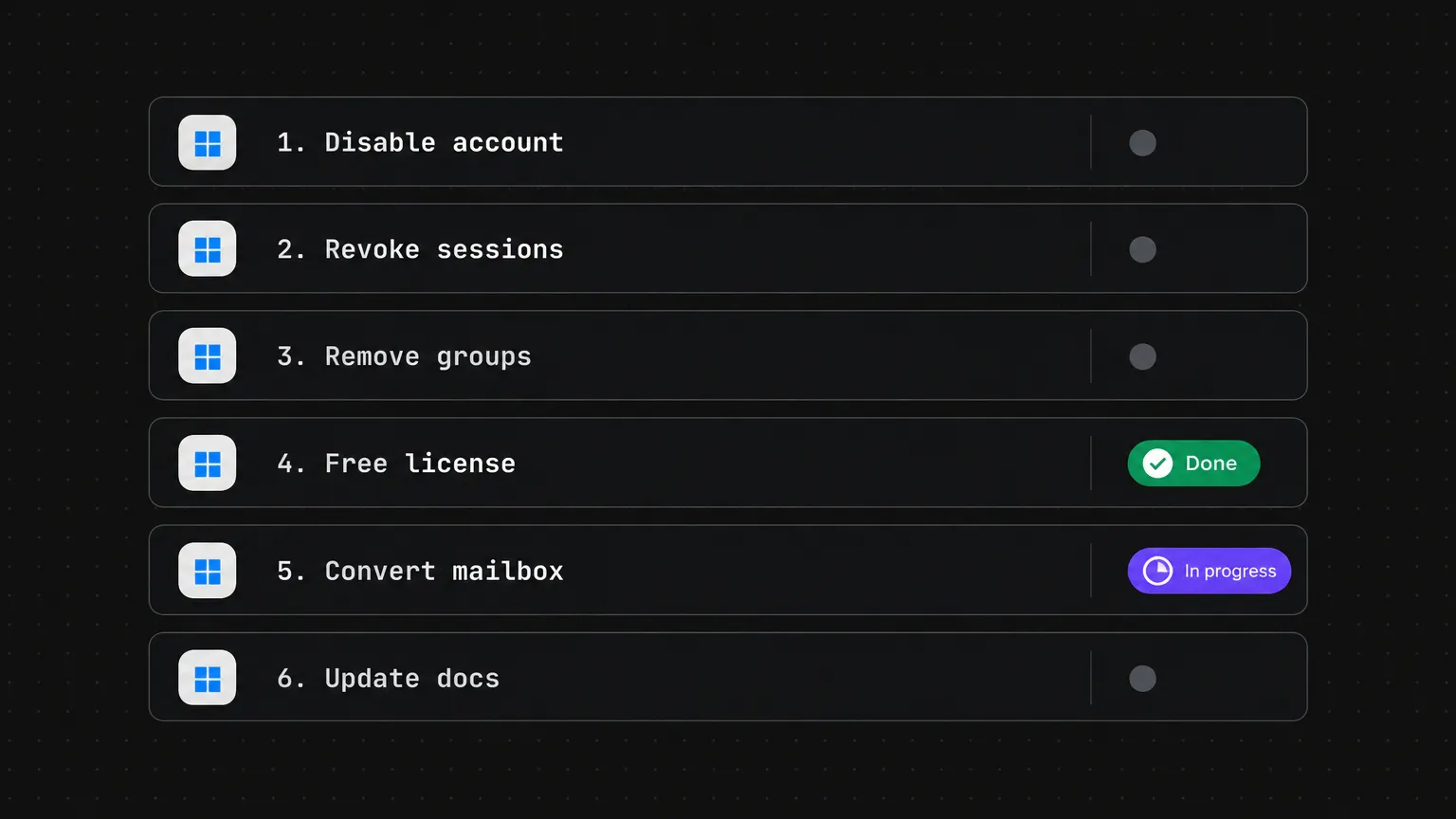
For MSPs managing multiple tenants, the operational answer is automation: Rallied runs the full offboarding workflow from a PSA ticket - sign-in blocked, sessions revoked, license freed, groups removed, mailbox converted to shared - in one pass, with an optional approval gate before anything changes. A standard 3-credit ticket. The manual SOP below is what you're automating.
Why offboarding is harder than it looks for MSPs
Onboarding has a forcing function. There's a start date. A manager submits a ticket. The new hire shows up Monday and if access isn't ready, someone's phone rings before 8 am. The process is deadline-driven and everyone treats it as a project.
Offboarding doesn't have the same urgency. The employee is already gone. The ticket arrives late - sometimes a week late, sometimes longer. Nobody is following up to check whether every step happened. And unlike onboarding, where a missed step means someone can't work, a missed offboarding step is invisible until it isn't: the license keeps billing, the account keeps sitting in Microsoft's directory, and the shared mailbox access nobody removed is still there when the auditor asks.
The MSP challenge compounds this. You're not running one tenant - you're running 30 or 50. Each client has their own M365 configuration, their own group memberships built up over years, their own quirks around shared mailboxes. A PowerShell script that works cleanly on one tenant trips over something unexpected on another. A tech working from memory misses the three distribution lists nobody remembered the user was in.
The steps below are what complete M365 offboarding actually requires, in the order Microsoft recommends. We've organized them the way Rallied's MSP offboarding SOP template does - access first, then data, then groups and licenses, then devices, then closeout. Each section names the specific places things go wrong.
Step 1: block sign-in and revoke active sessions
This is the one step everyone runs. The reason it still causes problems is the difference between blocking sign-in and ending active sessions.
Blocking sign-in in Entra ID prevents new logins. It does not terminate sessions that are already open. A user who was signed in on their laptop, their phone, and Outlook Web Access can keep working in all three until those tokens expire - which, depending on your client's session timeout policy, could be hours.
The correct sequence:
- Block sign-in in Entra ID. For hybrid environments, also disable the account in on-premises Active Directory. Source: Microsoft Learn, Step 1.
- Revoke all active sessions separately. In the Microsoft 365 admin center: Users > Active users > select the user > Revoke sign-in sessions. This kills existing browser, desktop, and mobile sessions immediately.
- Reset the password to a random value nobody keeps. This forces re-authentication anywhere the password is cached and invalidates app passwords.
- Remove MFA methods and app passwords. An app password set up two years ago and forgotten is still a valid authentication path if you don't explicitly remove it.
- Remove admin roles and privileged access. Check Global Admin, Exchange Admin, SharePoint Admin, and any custom roles.
For dismissals - not planned leavers - run these steps before the user is told. An admin who knows they're about to be let go has different incentives than one working out a notice period.
Step 2: mailbox - the step where sequence matters most
The mailbox section is where most MSPs introduce compliance risk, and it usually comes down to one mistake: removing the license before converting the mailbox.
When you remove an Exchange Online license, Microsoft starts a 30-day retention clock on the mailbox contents. After 30 days, the email, contacts, and calendar are deleted permanently. Converting the mailbox to shared before removing the license stops that clock entirely - a shared mailbox doesn't require a license (with one exception, below) and the data persists indefinitely.
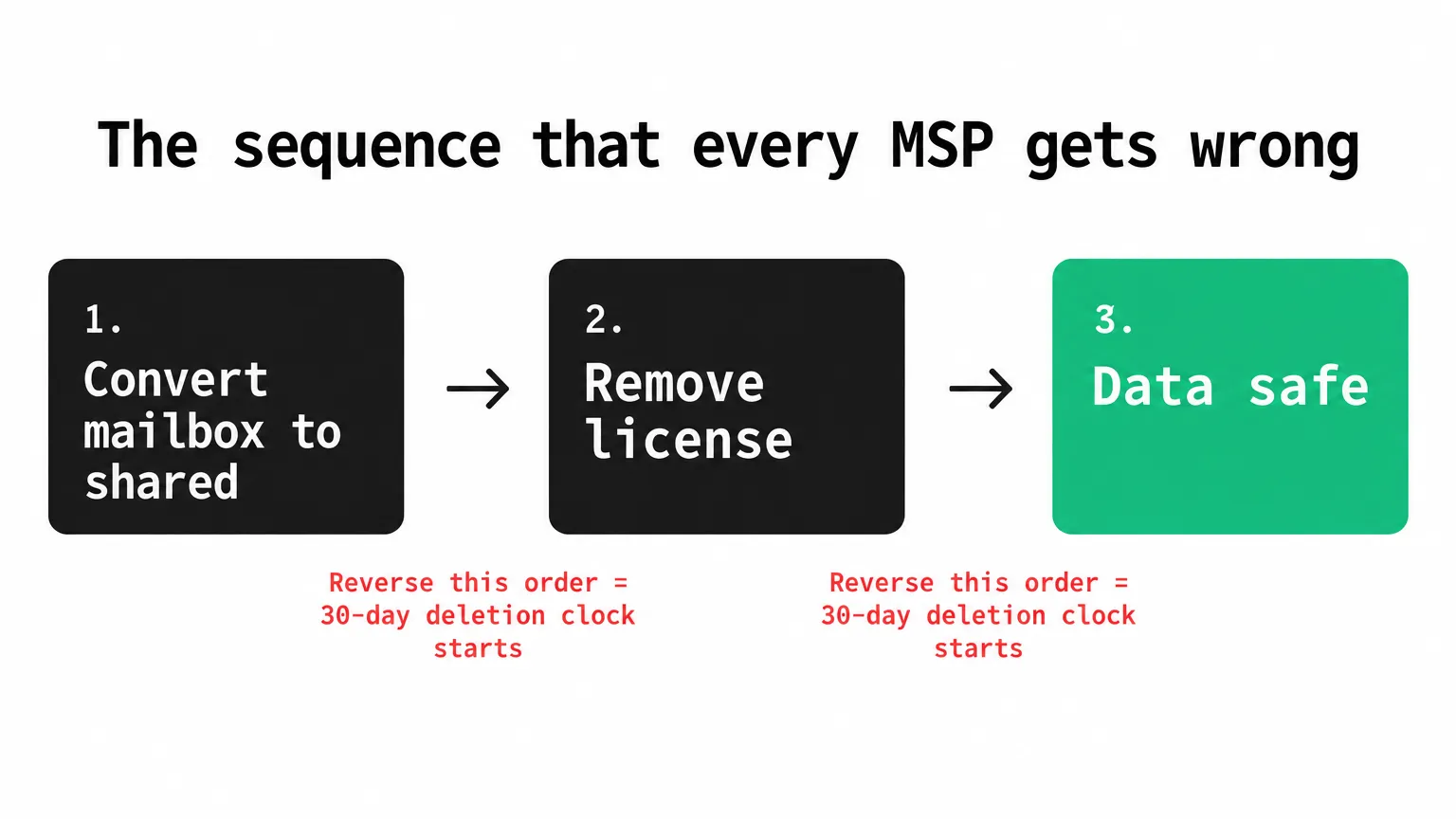
The correct sequence, per Microsoft's official guidance:
- Convert the mailbox to shared in the Exchange admin center or Microsoft 365 admin center before touching any license. Verify the conversion succeeded.
- Check mailbox size. A shared mailbox over 50 GB, or one under litigation hold, still requires an active license even after conversion. Source: Rallied's MSP offboarding SOP. If the mailbox is over 50 GB, keep the license or archive the mailbox before removing it.
- Grant Full Access to the manager or named recipient so they can read the leaver's email.
- Set forwarding or an auto-reply as the client has requested. Forward incoming mail to the manager, or configure an auto-reply so external parties know the user has left.
- Hide from the Global Address List. The leaver's name showing up in the autocomplete of every client in the tenant is not a good look.
"MSP Pro Tech: Microsoft 365 offboarding needs more than a licence change - business or HR owner should approve timing." - LinkedIn, MSP Pro Tech
One more thing: if the client asked for it, set up forwarding in addition to Full Access. Full Access lets the recipient read the mailbox; it doesn't redirect incoming mail. These are two different settings.
Step 3: OneDrive and files
OneDrive is the other place MSPs leave access dangling. By default, when you delete a user's account, their OneDrive content is retained for 30 days and then permanently deleted. That window is shorter than most MSPs realize, and it's easy to miss when offboarding tickets pile up.
Per Microsoft's guidance:
- Grant another employee access to the leaver's OneDrive before deleting the account. The manager or a named recipient should be able to access the files.
- Transfer ownership of Teams, Microsoft 365 Groups, and SharePoint sites the user owned. A site without an owner is an orphaned object - it doesn't disappear, but nobody is managing it.
- Apply litigation hold or retention policy if required. If the client is subject to a legal hold, this is non-negotiable. The PSA ticket should have captured this in the initial approval step.
Note the difference in retention rules depending on what you do: if you remove the license but keep the account active, OneDrive content stays accessible indefinitely. If you delete the account, you get 30 days. Document which you're doing on each ticket.
Step 4: groups, distribution lists, and license revocation
This is the category where the most time and money gets left on the table. Not because the steps are complicated, but because they're tedious, and most manual processes skip them.
Group membership cleanup
A user added to their team three years ago was also added to:
- A distribution list for an external vendor
- A Teams channel for a project that finished 18 months ago
- A security group that grants SharePoint access to a restricted HR folder
- Two other distribution lists nobody remembers creating
Removing the user from their primary department group and calling it done is what produces the "lingering group memberships" that show up when an auditor asks who has access to the HR SharePoint.
The right approach: enumerate all group memberships before removing anything, then remove them all. In the Microsoft 365 admin center, under Users > Active users > select the user > Groups. For security groups and role assignments, check Entra ID directly. Record what you found on the ticket before removing - this is your audit trail.
License revocation
Remove licenses only after the mailbox conversion in Step 2 is confirmed. This is the sequencing rule that matters.
Once the mailbox is safe:
- Remove the Microsoft 365 license (Exchange Online, Teams, SharePoint, whatever was assigned)
- Remove any add-on licenses: Visio, Power BI, Microsoft Copilot, Defender for Endpoint
- Check the Microsoft 365 Copilot license specifically - Copilot licenses are expensive ($30/user/month) and easy to forget
- Reduce the seat count with your distributor (Pax8, Ingram, TD Synnex) if the client doesn't need the seat
- Remove per-user licenses in adjacent tools: EDR, backup, password manager, line-of-business apps
The Copilot line is worth flagging explicitly because it's new. As of 2026, Rencore's offboarding checklist notes that M365 Copilot license revocation and reviewing active Copilot agents or Power Automate flows associated with the user are now standard steps. An M365 Copilot license forgotten on a departed user is $30/month billing for nothing.
Step 5: devices
Device handling is where the checklist intersects with your RMM.
- Selective wipe company data from personal phones via Intune. For company-owned devices, do a full wipe. Per Microsoft Learn, Step 3.
- Collect the device and update the asset record. Note the collection date.
- Keep the BitLocker recovery key until the wipe is confirmed.
- Retire or reassign the device in your RMM and EDR consoles. A device that's been wiped but left active in your RMM will keep generating noise.
- Remove VPN, remote access, and SSO app access. This is separate from the Entra ID block - VPN clients and legacy SSO connections can persist even after M365 access is revoked.
- Rotate shared passwords the user knew, including any in a shared password vault. This step gets missed on almost every manual checklist.
Step 6: the audit trail (the step that actually protects you)
The audit trail is what converts a completed offboarding from a tech action into a documented compliance event. It's also the step most manual processes skip entirely because it takes time and there's no immediate visible consequence for skipping it.
What a proper audit trail captures:
- Every action taken and its timestamp
- Who approved the offboarding (per the client's approved-requester list)
- Where the mailbox went (shared mailbox, forwarding, or both)
- Where the OneDrive files went
- What groups and licenses were removed
- Device status after wipe
Per Rallied's MSP SOP template: "A spreadsheet with a checkbox and a date" will not pass a SOC 2 review. A client going through a SOC 2 audit will be asked to prove that access was revoked - specifically, when it was revoked and who approved it. An internal note on the PSA ticket with timestamped entries is the minimum; an immutable log that captures every tool call is stronger.
For MSPs, this matters at the client level (their compliance) and at the MSP level (your own). If a former employee's account is implicated in a data breach six months later and you can't show that access was revoked on their last day, that conversation is unpleasant.
The gaps that show up most often
Across the steps above, a few failure modes are more common than others:
Active licenses on departed users. The account gets disabled but the license isn't removed. Microsoft keeps billing. The client keeps paying. This is the one that costs real money - research estimates 10-20% of customer licenses at a typical MSP stay active after employees leave. Source: Rallied's M365 provisioning post.
Lingering group memberships. The user is removed from their primary department group and left in three others. Nobody checks the full membership list. The SharePoint access stays.
Orphaned shared mailbox access. The departing employee had Full Access to the CFO's mailbox "temporarily, two years ago." Nobody noticed. It's still there.
No audit trail. When a compliance auditor asks "prove this person no longer has access," there's a Slack message from the manager that says "yeah they left." That's not documentation.
Forgotten Copilot and Power Automate. New in 2026: active Copilot licenses, Power Automate flows the user owned, and agent configurations need to be reviewed and cleaned up as part of offboarding. Copilot agents can have permissions to SharePoint sites and mailboxes - those don't revoke automatically when the user account is disabled.
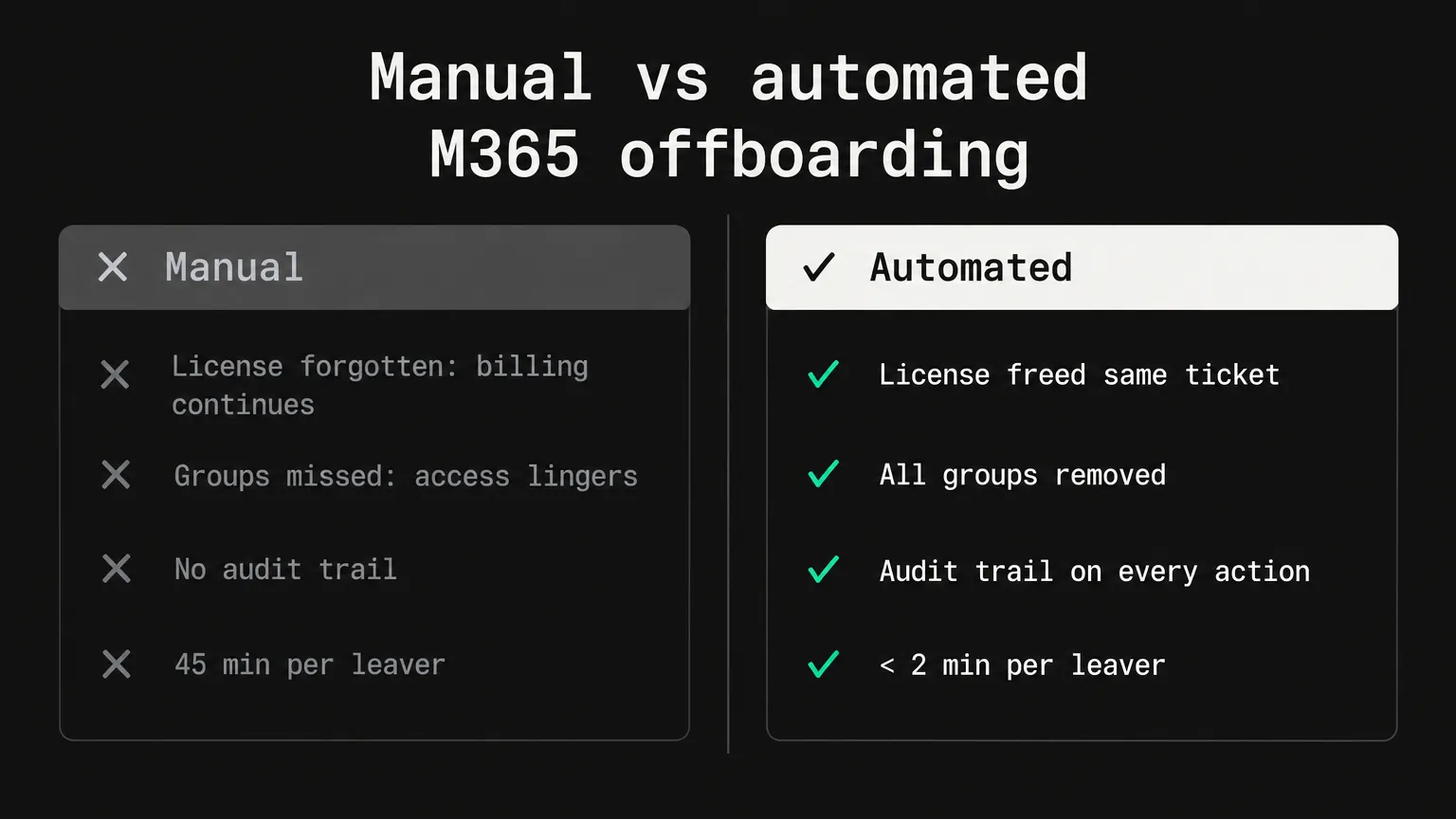
The complete M365 offboarding checklist for MSPs
Here's every step in one place. Built from Microsoft's official seven-step guide and Rallied's MSP SOP template.
Before you start
Access revocation
Mailbox (sequence matters)
OneDrive and files
Groups and licenses
Devices
Closeout
Handling hybrid environments
If your client's identities sync from on-premises Active Directory, the M365 admin center alone isn't enough. Accounts synced from AD must be disabled in AD - you can't disable or delete them in M365 directly. This is true for sign-in blocking and for account deletion.
For Entra ID-only environments, the Remove-MgUser PowerShell cmdlet handles deletion. For hybrid environments, the action lives in on-prem AD and syncs up.
The practical implication for MSPs: know before you start whether each client tenant is cloud-only or hybrid. A tech who blocks sign-in in Entra ID on a hybrid tenant and then closes the ticket has left the on-prem AD account active. The M365 block holds, but any on-prem resource that authenticates directly against AD is still accessible.
What "automate it" actually means for this checklist
The argument for automation on M365 offboarding isn't that techs can't run the checklist. They can. It's that they run it differently each time, on different clients, from memory or from a PDF nobody updated after a client's tenant changed, at 3:47 pm on a Friday when the offboarding ticket came in late.
The PowerShell route addresses some of this. A YouTube tutorial from r/msp covers how to automate M365 user offboarding using Microsoft Forms, Power Automate, and Azure Automation. That approach works, but it requires building and maintaining the flow yourself, per tenant, and it doesn't connect to your PSA ticket, your RMM for device handling, or your distributor for license seat counts.
An AI technician like Rallied works differently: it reads the offboarding ticket in your PSA, identifies the correct tenant by the requester's email domain, runs the checklist against the live state of that tenant, and writes every action back to the ticket as it goes. No per-tenant workflow to build, no flow to maintain when Microsoft changes something, and no separate tool from your PSA.
The Rallied workflow for a leaver ticket, per the M365 automation page:
"Blocks sign-in, revokes every active session, resets the password, frees the licence, removes them from groups and lists, converts the mailbox to shared, and forwards their mail to a manager. The same list your techs work through by hand today, in the same order."
The approval gate is the part that matters for skeptical MSP owners. Every action can be set to run automatically, require a technician's approval before running, or be disabled entirely. For a new client or a new action type, you start with approval gates on everything. Once you've seen it work correctly on 20 offboarding tickets, you relax the gate on the actions you're confident in.
What the credit cost looks like
A full M365 offboarding ticket - blocks sign-in, revokes sessions, removes groups, frees the license, converts the mailbox, forwards mail - that works across M365, your RMM for device handling, and Pax8 to reduce the seat count is an 8-credit complex ticket. If the offboarding is M365-only without RMM or distributor touches, it's likely a 3-credit standard ticket.
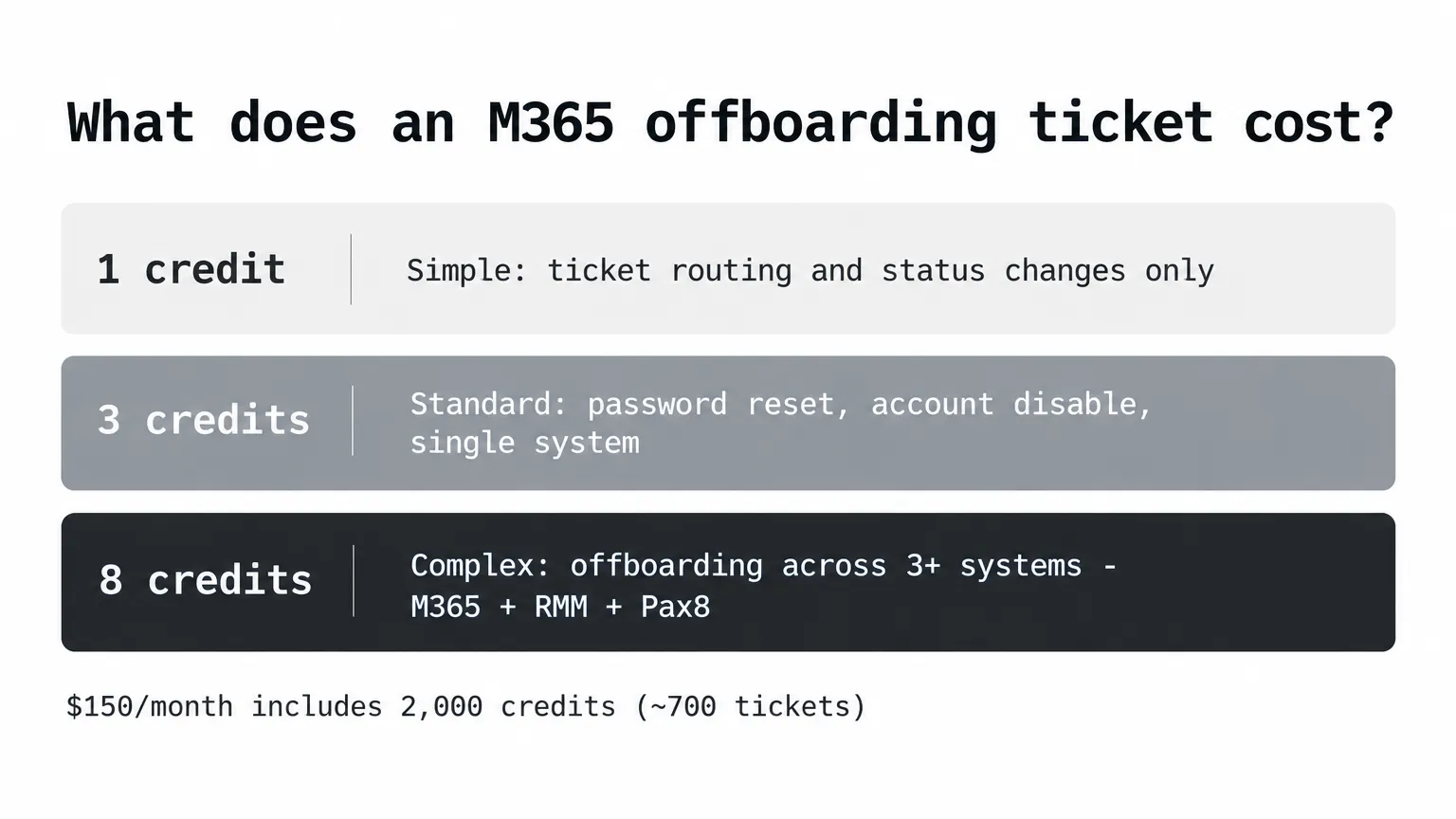
On Rallied's $300/month plan with 2,000 credits, at 8 credits per complex offboarding, you're looking at 250 full-stack offboarding tickets covered by the base plan. Most MSPs don't run that many leavers in a month. Source: rallied.ai/pricing.
For MSPs whose clients are M365-heavy - which is most of them - the M365 offboarding and onboarding workflow is a reasonable place to start with Rallied. The checklist is well-defined, the tenant matching is handled automatically by email domain, and the approval model means you're not handing the agent unsupervised access to any client's tenant until you've seen it work.

The workflow above is what Rallied runs on a leaver ticket: disable the account, revoke sign-in sessions, remove from groups, unassign the M365 license, convert the mailbox to shared, and reclaim the seat at the Pax8 marketplace level so the client isn't billed for it next cycle. Six steps, one ticket, full audit trail. Compare that to the same six steps done manually across three different admin portals.
Try Rallied
Rallied is an AI technician for MSPs that runs M365 offboarding - and onboarding, account lockdowns, and other L1/L2 work - from your PSA ticket. It connects to ConnectWise, HaloPSA, Autotask, and SuperOps, uses GDAP for multi-tenant M365 access, and writes every action back to the ticket as an audit trail. No per-tenant workflow to build, no implementation project - most MSPs connect their PSA and are live in under a week.
Pricing is $300/month for 2,000 credits. A full-stack M365 offboarding ticket runs 8 credits; an M365-only offboarding runs 3. Tickets Rallied can't finish aren't charged. Details at rallied.ai/pricing.
For the wider picture, read How MSPs automate user onboarding in 2026.
Frequently Asked Questions
What is the correct order for M365 offboarding steps?
The most important sequencing rule: convert the mailbox to shared before you remove the license. If you remove the license first, Microsoft starts a 30-day deletion countdown on the mailbox contents. The safe order is: block sign-in and revoke sessions first, convert the mailbox to shared, grant the manager Full Access, then remove the license. Full details in Microsoft's seven-step offboarding guide.
How long does Microsoft retain data after removing an M365 license?
When you remove a license but keep the account active, email, contacts, and calendar are retained for 30 days, then deleted permanently. OneDrive content stays accessible to the admin even after 30 days as long as the account isn't deleted. If you delete the account entirely, OneDrive and Outlook content is retained for 30 days, during which the account can be restored. Source: Microsoft Learn.
What M365 offboarding steps do MSPs most commonly miss?
The most commonly missed steps are: (1) license revocation - the account gets disabled but the seat keeps billing; (2) group cleanup - users are removed from their primary group but left in distribution lists and Teams channels they were added to over time; (3) orphaned shared mailbox access - Full Access permissions granted 'temporarily' that were never revoked; and (4) no audit trail. Rallied's MSP offboarding SOP covers each of these with actionable steps.
Does a shared mailbox over 50 GB still need a license?
Yes. A shared mailbox over 50 GB, or one that is under litigation hold, still requires an active license even after conversion. You can remove the user's Exchange Online license only when the shared mailbox is confirmed to be under 50 GB and not subject to a legal hold. Source: Rallied's offboarding SOP for MSPs.
How can MSPs automate Microsoft 365 user offboarding?
MSPs can automate M365 offboarding through PowerShell scripts, Microsoft Power Automate flows (using Microsoft Forms as a trigger), or a purpose-built AI technician like Rallied. Rallied reads the offboarding ticket in your PSA, blocks sign-in, revokes sessions, resets the password, removes the user from groups and distribution lists, frees the license, converts the mailbox to shared, and forwards mail to a manager - all from one ticket, with an approval gate before it runs.