How to find BitLocker recovery keys in Intune (and what to do when they're missing)

TL;DR
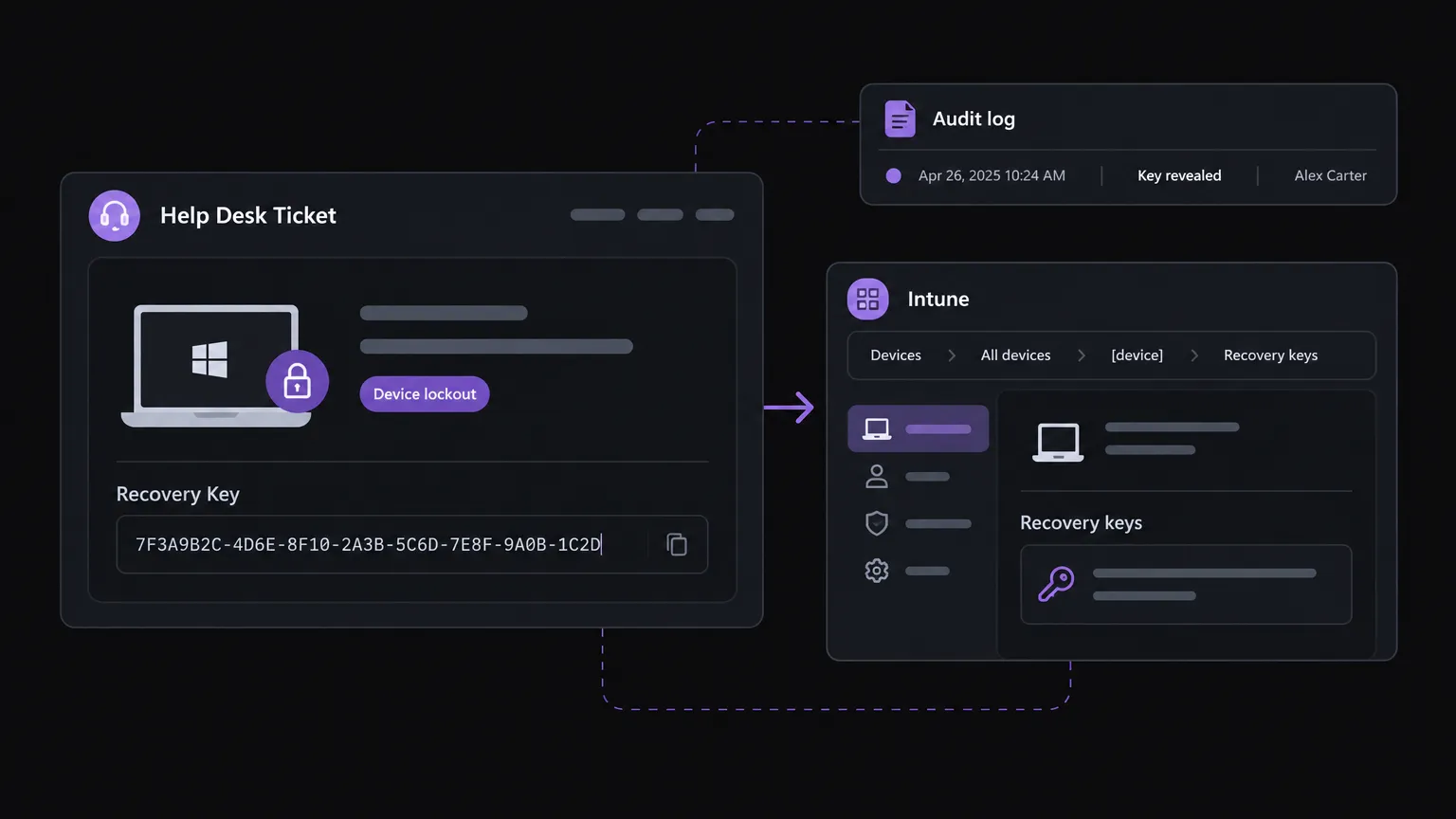
Finding a BitLocker recovery key in Intune takes about 30 seconds when everything is set up correctly: open the device in the Intune admin center, go to Monitor > Recovery keys, click Show Recovery Key. The harder problem is when the key isn't there - and for MSPs, that happens more than it should. The most common reason: the device was encrypted before Intune's policy could escrow the key. The fix involves rotating the key or re-encrypting, and catching it earlier with a proper escrow policy. For MSPs handling this at scale, Rallied can retrieve recovery keys and resolve lockout tickets autonomously - no tech needs to touch the Intune portal.
The scenario plays out constantly at MSPs. A user calls in - laptop is asking for a 48-digit recovery key, usually after a BIOS update, a hardware swap, or a failed TPM negotiation. The tech opens Intune, finds the device, clicks through to Recovery keys, and the blade is empty. Now the call that should have taken two minutes becomes a 45-minute on-site visit.
BitLocker recovery key management in Intune is not complicated when it works. The problem is knowing exactly why it doesn't work when it doesn't, and having a process that catches the gap before the user calls in locked. This guide covers both.
How BitLocker key escrow works in Intune
Escrow is the whole thing. A BitLocker recovery key only shows up in Intune or Entra ID if it was sent there when the recovery password protector was created. That moment - key creation - is the only window when escrow happens automatically.
For devices that are Entra joined (or Entra hybrid joined), the recovery key escrows to the device object in Microsoft Entra ID. Intune surfaces that same key on the device record. The two admin centers are looking at the same data.
For AD DS joined devices managed through Group Policy rather than Intune, keys escrow to Active Directory instead - and they won't appear in the Intune portal at all.
Windows logs success or failure to Event Viewer at Applications and Services Logs > Microsoft > Windows > BitLocker-API > Management. Event ID 845 means escrow succeeded. Event ID 846 means it failed. If you're troubleshooting a missing key, start there.
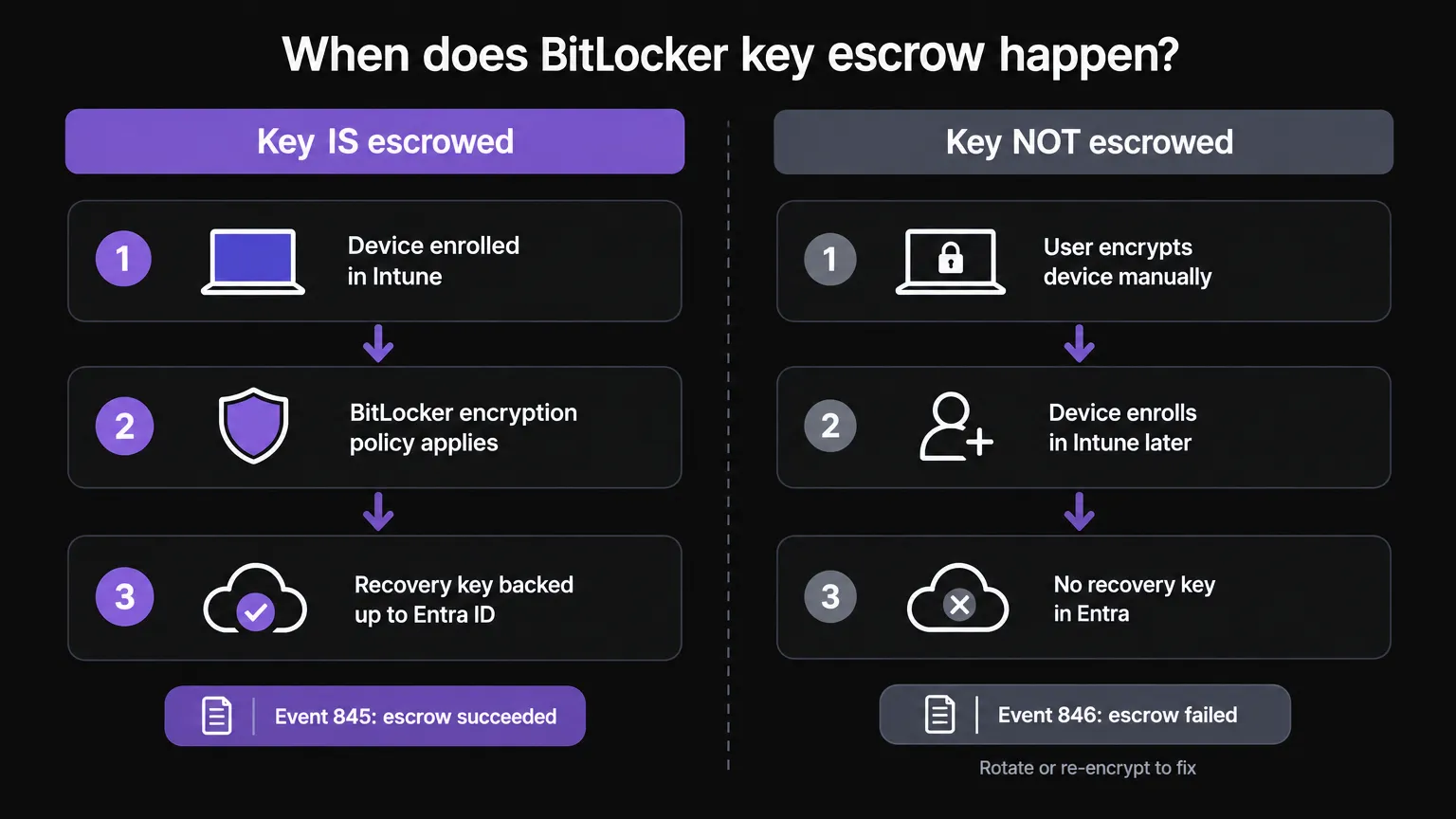
The single most important thing to know: if the device was encrypted before it enrolled in Intune, there is no key in Intune. Escrow happens once, at key creation. If the policy wasn't there yet, the key went nowhere. This is the most common reason the Recovery keys blade comes up empty, and it catches MSPs out constantly - especially on devices that were already in the field when a client moved to Intune.
Retrieving a BitLocker recovery key from the Intune admin center
This is the path your help desk will use most often.
- Sign in to intune.microsoft.com.
- Go to Devices > All devices and search for the device.
- Open the device record.
- Select Monitor > Recovery keys from the left-hand navigation.
- Click Show Recovery Key next to the relevant protector.
The key is shown per recovery protector. A device that has had its key rotated will show multiple entries - the current key and any historical ones.
A few things that trip people up on this path:
The blade exists but is empty. The device is enrolled, the policy is assigned, but there's no key listed. This almost always means escrow never happened - see the troubleshooting section below.
The device doesn't appear in the list. Check scope tags and RBAC assignments. An admin with the right Entra role can still be blocked from seeing a device if Intune's own RBAC setup doesn't give them access to that device scope.
Status lag. The encryption report can take up to 24 hours to reflect changes. Don't conclude escrow failed based on a report that may just be stale - check the event log on the device first.
The encryption report: fleet-level visibility
The encryption report (Devices > Manage devices > Configuration > Device encryption status) gives a fleet view rather than a per-device one. It shows which devices are encrypted, which aren't, and which had a backup failure. It doesn't show the keys themselves - you still open the device record for that - but it's the right place to audit whether your estate has gaps.
Export this report at regular intervals. If you're managing clients with compliance requirements, the report is your evidence that all in-scope endpoints are encrypted. The backup failure column is the one to watch.
Retrieving a BitLocker recovery key from Entra ID
The Entra path shows the same key as Intune, through a slightly different route.
- Sign in to the Microsoft Entra admin center.
- Go to Entra ID > Devices > All devices.
- Search for the device and open it.
- Select Show Recovery Key from the device's BitLocker keys section.
Each key is tied to a key ID. If the recovery prompt on the device is showing a specific key ID, match it against the list in Entra to make sure you're reading out the right one - especially on devices that have had key rotations.
One limit worth knowing: Microsoft Entra ID supports a maximum of 200 BitLocker recovery keys per device. For most environments this is irrelevant, but if you're rotating keys aggressively on long-lived devices, older entries will roll off as new ones are added.
Audit logging
Every reveal of a recovery key - from either admin center, or via Microsoft Graph - gets logged. In Entra, go to Entra ID > Devices > Activity > Audit logs and filter for the KeyManagement category.
This is your compliance evidence. Pair the audit log entry with the corresponding PSA ticket number in your notes, so that if an auditor asks "why was this key viewed on this date," you have the answer. Standing Global Admin access used for routine key retrieval will show up in this log too - it's a finding in SOC 2 and HIPAA-adjacent reviews, and it's one of the reasons least-privilege role assignment actually matters in practice.
Which roles can see BitLocker recovery keys
There are two separate permission systems at play, and getting one right while missing the other is a common cause of "I can't see the key" tickets.
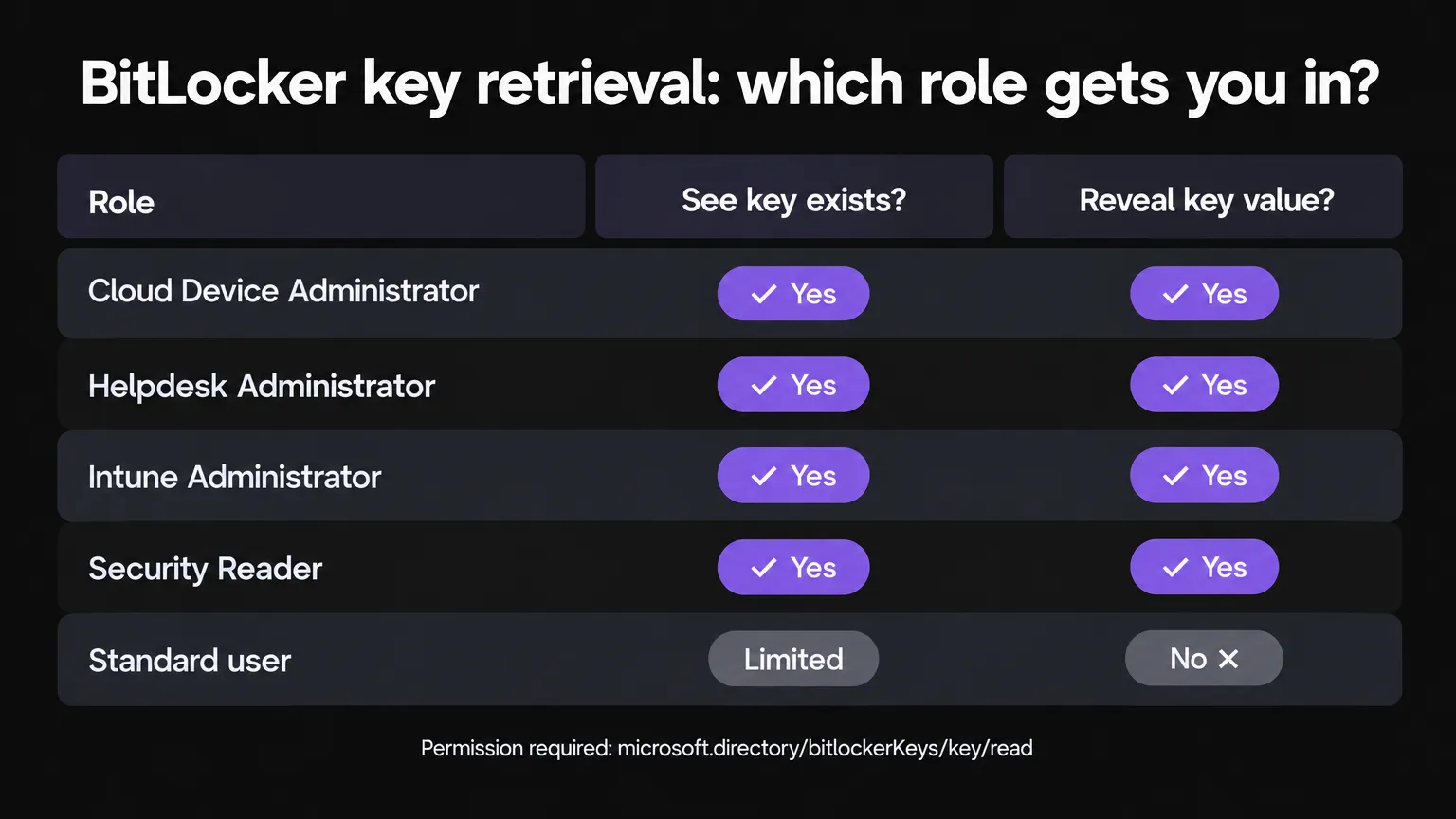
Entra side: The specific permission is microsoft.directory/bitlockerKeys/key/read. Microsoft's device identity documentation lists these roles as carrying it:
- Cloud Device Administrator
- Helpdesk Administrator
- Intune Administrator
- Security Administrator
- Security Reader
Note that two different Microsoft Learn pages list slightly different sets of roles. Before you tell a tech they should be able to see keys with a given role, confirm against the current Entra built-in roles reference in your tenant - role definitions can change across portal updates.
Intune side: If you also need to trigger key rotation, you need the Intune RBAC permission Remote tasks > Rotate BitLockerKeys (preview). The built-in roles Help Desk Operator and Endpoint Security Administrator carry this. A tech who can view a key but can't rotate it needs separate attention.
Least-privilege recommendations for MSPs
Keep Global Administrator out of the routine key-retrieval path. Use a PIM-activated role instead, or assign Helpdesk Administrator to your L1 team - it grants key read access without the blast radius of a full admin. Apply Conditional Access to require a compliant device before admins can access keys.
If end users don't need self-service recovery - most MSP-managed clients don't - enable Restrict non-admin users from recovering the BitLocker key(s) for their owned devices in the tenant settings. This blocks the Company Portal self-service path and keeps key access in your team's hands.
GDAP considerations for MSPs
For MSPs managing multiple client tenants, Granular Delegated Admin Privileges (GDAP) is how you give your technicians scoped access without handing them a standing Global Admin in every customer tenant. For BitLocker key work, the GDAP relationship must include a role that carries bitlockerKeys/key/read - Helpdesk Administrator is the common pick.
A few GDAP gotchas that bite MSP teams: access is per-customer, so confirm each customer relationship separately. GDAP grants expire and must be renewed - a lapsed relationship looks like "the key vanished" from a tech's perspective when it's actually just an expired grant.
Making sure keys are always escrowed
The reactive problem (retrieving a key when someone is locked out) is much easier when the proactive problem (making sure every device has an escrowed key) is handled first. Here's what actually makes escrow reliable.
Get the policy on the device before encryption starts. The escrow happens when the recovery password protector is created. If Intune hasn't delivered the policy yet, that window closes without a key being backed up. For Autopilot deployments, target the policy at a dynamic group that matches on the ZTD ID:
(device.devicePhysicalIDs -any (_ -startsWith "[ZTDId]"))
This ensures the encryption policy reaches the device before the first user sign-in, not after.
Check these policy settings. The Intune BitLocker policy settings that affect escrow:
- Require Device Encryption: enabled.
- Allow Warning For Other Disk Encryption: disabled. Leaving this on prompts the user in a way that can block silent encryption.
- Allow Standard User Encryption: enabled. Without it, non-admin users can't encrypt without an admin session, and encryption may not start at all on shared or standard-user devices.
- Avoid requiring a TPM startup PIN or startup key on managed devices - it creates an interaction point that can stop encryption or escrow from completing automatically.
Know the difference between encrypted and escrowed. A device showing as "encrypted" in the report doesn't mean the key is backed up. The encryption report has a separate backup status field. Watch for devices that are encrypted but show a backup failure - those are the ones that will surface as problems when someone gets locked out.
Rotate keys after a known exposure. Windows 10 1909 and later support key rotation via Intune's BitLocker key rotation remote action. Use it after any scenario where a key may have been seen by someone who shouldn't have it - a former employee, an unticketed recovery event, a suspected compromise. Rotation creates a new recovery password and escrows it; the old key remains in the record.
What to do when the key isn't there
When the Recovery keys blade is empty, work through this in order:
1. Check join state. Run dsregcmd /status on the device. Look for AzureAdJoined : YES. A workgroup device or an AD-only joined device won't escrow to Entra, period.
2. Check the event log. Open Event Viewer > Applications and Services Logs > Microsoft > Windows > BitLocker-API > Management. Look for event ID 846 (escrow failed) or the absence of event 845 (escrow succeeded) around the time encryption was enabled. If you see 846, the next question is why - usually network access to Entra, a policy configuration issue, or a timing problem.
3. Determine if the device was encrypted pre-enrollment. If the volume was encrypted before the Intune policy was ever assigned, there's no escrowed key to find. You can confirm by running manage-bde -protectors -get C: and checking whether a recovery password protector exists. If it does but there's nothing in Intune, the key was never escrowed.
4. Options if the key is genuinely missing:
- Trigger a key rotation via Intune if the device is enrolled and the policy supports it. This creates a new key and escrows it.
- If the device is recoverable and accessible, add a recovery password protector and force escrow through the policy.
- If none of that works, the device may need to be re-encrypted from scratch - which means a wipe or manual intervention.
5. Don't wait until a lockout. Run regular spot checks using the encryption report's backup status field. Catch the missing-key devices before the user calls in.
"The key is almost always missing for one of two reasons: the device got encrypted before the policy got there, or GDAP access lapsed and the tech was looking in the wrong tenant. Either way, the damage is done - you're on the phone for 45 minutes." - r/msp community discussion on GDAP and BitLocker recovery
BitLocker lockout tickets and MSP automation
Here's the honest math: a typical MSP handles a lot of BitLocker lockout tickets. Most of them follow the same path - user is locked out, tech looks up the key in Intune, reads it to the user or posts it to a ticket, marks it resolved. It's 5-10 minutes of reactive work, per ticket, every time.
When everything is set up correctly, there's no reason a human needs to be in that loop. The steps are known, the data source is consistent, and the action is bounded. It's exactly the kind of ticket Rallied was built to handle.
When a BitLocker lockout ticket arrives in ConnectWise or HaloPSA, Rallied reads it, identifies the device, retrieves the recovery key from Entra ID, posts it as an internal note on the ticket, logs the action with a time entry, and closes the ticket. The user gets their key. No tech opens a portal.
If the key isn't there - because escrow never happened, or the device isn't Entra joined - Rallied doesn't guess. It escalates with a diagnostic note explaining exactly what it found (and didn't find), so the tech who picks it up knows what they're walking into. No wasted time re-diagnosing.
The same principle extends to the audit side. Rallied's integration with Entra ID means every key retrieval it performs goes through the same KeyManagement audit log as a manual retrieval - which means your compliance posture doesn't change when you automate the ticket. The paper trail is identical.
Beyond BitLocker, the same AI technician handles password resets, account unlocks, MFA re-enrollment, shared mailbox access, onboarding and offboarding - the full catalog of L1 and L2 tickets that chew through billable hours at most MSPs. At $300 a month for roughly 700 tickets (based on an average of 2.7 credits per ticket at Rallied's credit tiers), the math tends to work out well before you hit the break-even on a single tech's loaded hourly rate.
Compliance and audit considerations
If you're managing clients with HIPAA, SOC 2, or similar compliance requirements, disk encryption and key management typically come up in audits. Here's what auditors tend to want:
- Proof that all in-scope endpoints are encrypted. The Intune encryption report, exported for the audit period.
- Proof that recovery keys are escrowed somewhere the organization controls. The device's Recovery keys blade in Intune or Entra, or a periodic export of devices with backup status.
- Proof that access to recovery keys is restricted and logged. Entra audit logs filtered to
KeyManagement, plus your Entra and Intune RBAC role assignments at the audit date.
The gap auditors find most often is devices that show as encrypted but have no escrowed key - a device report that reads "encrypted" with a backup failure is exactly the kind of finding that generates a remediation item. Export the full encryption report, not just the encryption status column.
The second common finding is standing admin access used for routine key retrieval - especially Global Administrator. If your technicians are using Global Admin to look up recovery keys, switch them to Helpdesk Administrator and document the change. It's a simple control that most auditors will note if they see it.
Try Rallied
Rallied is an AI technician for MSPs that resolves L1 and L2 tickets autonomously - including BitLocker lockouts. It connects to your PSA (ConnectWise, HaloPSA, Autotask, SuperOps), reads the ticket, retrieves the recovery key from Entra ID, and closes the ticket with a time entry. When it can't resolve - because the key isn't escrowed, or the situation needs a human - it hands off with the diagnostic work already done.
Most MSPs are live in under a week. No workflow library to build before it starts working. $300 a month, month-to-month. See what it handles or book a demo.
For the wider picture, read IT Help Desk Procedures.
Frequently Asked Questions
How do I find a BitLocker recovery key in Intune?
In the Intune admin center, go to Devices > All devices, open the device, then select Monitor > Recovery keys and click Show Recovery Key. You need a role that includes the microsoft.directory/bitlockerKeys/key/read permission - Cloud Device Administrator, Helpdesk Administrator, and Intune Administrator all qualify. If the blade is empty, the key was never escrowed to Entra ID - see the troubleshooting section.
What role do I need to view BitLocker recovery keys in Intune?
The required Entra permission is microsoft.directory/bitlockerKeys/key/read. Roles that carry it include Cloud Device Administrator, Helpdesk Administrator, Intune Administrator, Security Administrator, and Security Reader. Global Administrator also works but should not be used for routine key retrieval. For MSPs managing customer tenants, GDAP relationships must include one of these roles for each customer.
Why is the BitLocker recovery key missing from Intune?
The most common cause is that the device was encrypted before it enrolled in Intune. BitLocker key escrow happens when the recovery protector is created - if that happened outside Intune's control, no key was sent to Entra ID. Other causes include: the device is not Entra joined (workgroup or AD-only devices don't escrow to Entra), a failed escrow (check Event Viewer for event ID 846 in the BitLocker-API Management log), or an Autopilot timing issue where encryption started before the Intune policy applied.
Does viewing a BitLocker recovery key get logged?
Yes. Every time someone reveals a BitLocker key - via the Intune admin center, the Entra admin center, or the Microsoft Graph API - it is recorded in the Entra audit log under the KeyManagement category. You can filter audit logs in Entra ID > Devices > Activity > Audit logs. This log is your evidence trail for compliance reviews - pair it with the help desk ticket to show why each key was accessed.
Can Rallied automatically retrieve BitLocker recovery keys when a user is locked out?
Yes. Rallied connects to Microsoft Entra ID and can retrieve a BitLocker recovery key as part of resolving a device lockout ticket - no tech needs to open the Intune portal. It posts the key as an internal note on the PSA ticket, logs the action, and closes the ticket with a time entry. If the key is not escrowed, Rallied escalates with a diagnostic note so the tech knows exactly what to check.