How to transfer OneDrive files when an employee leaves

TL;DR
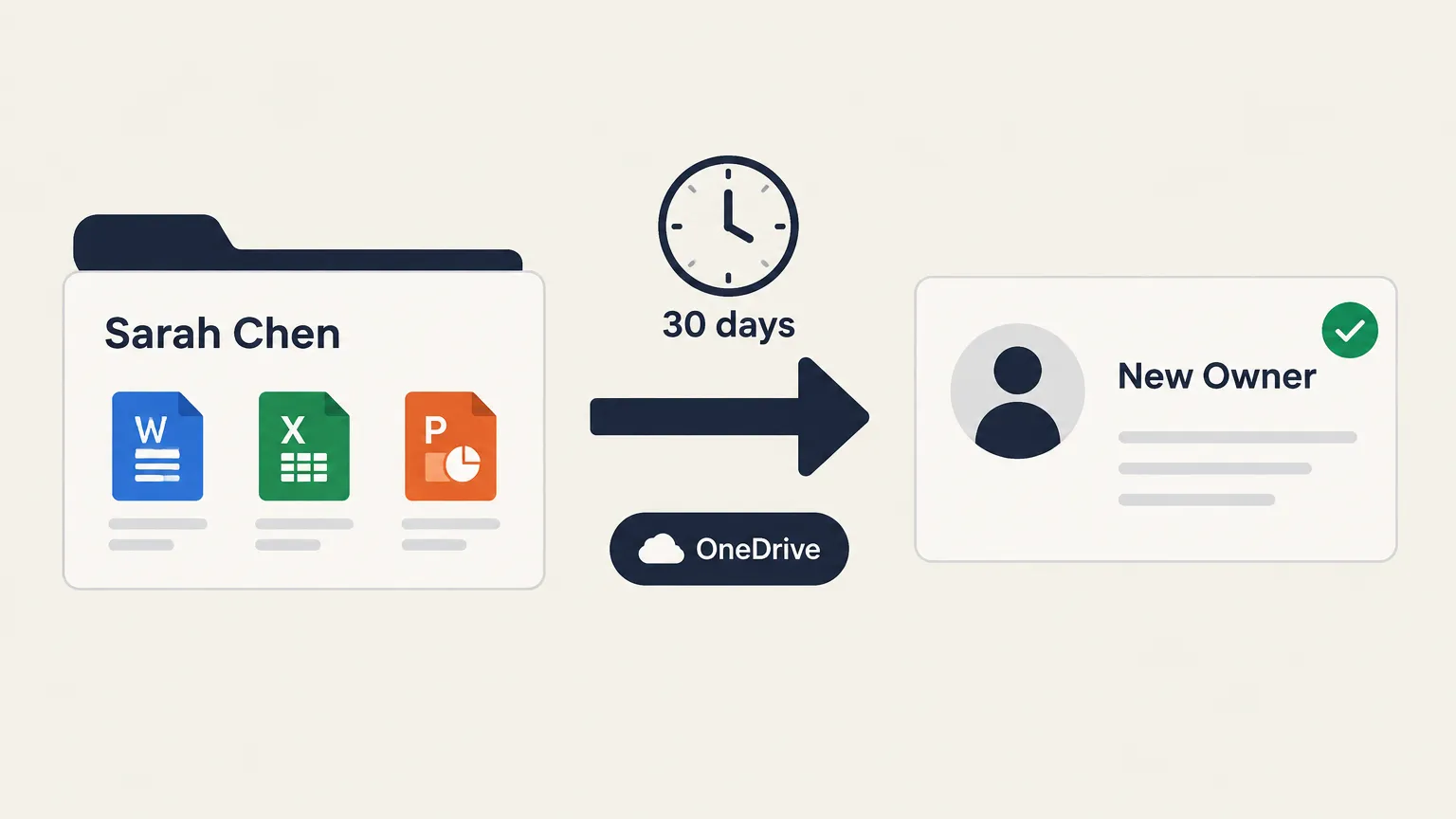
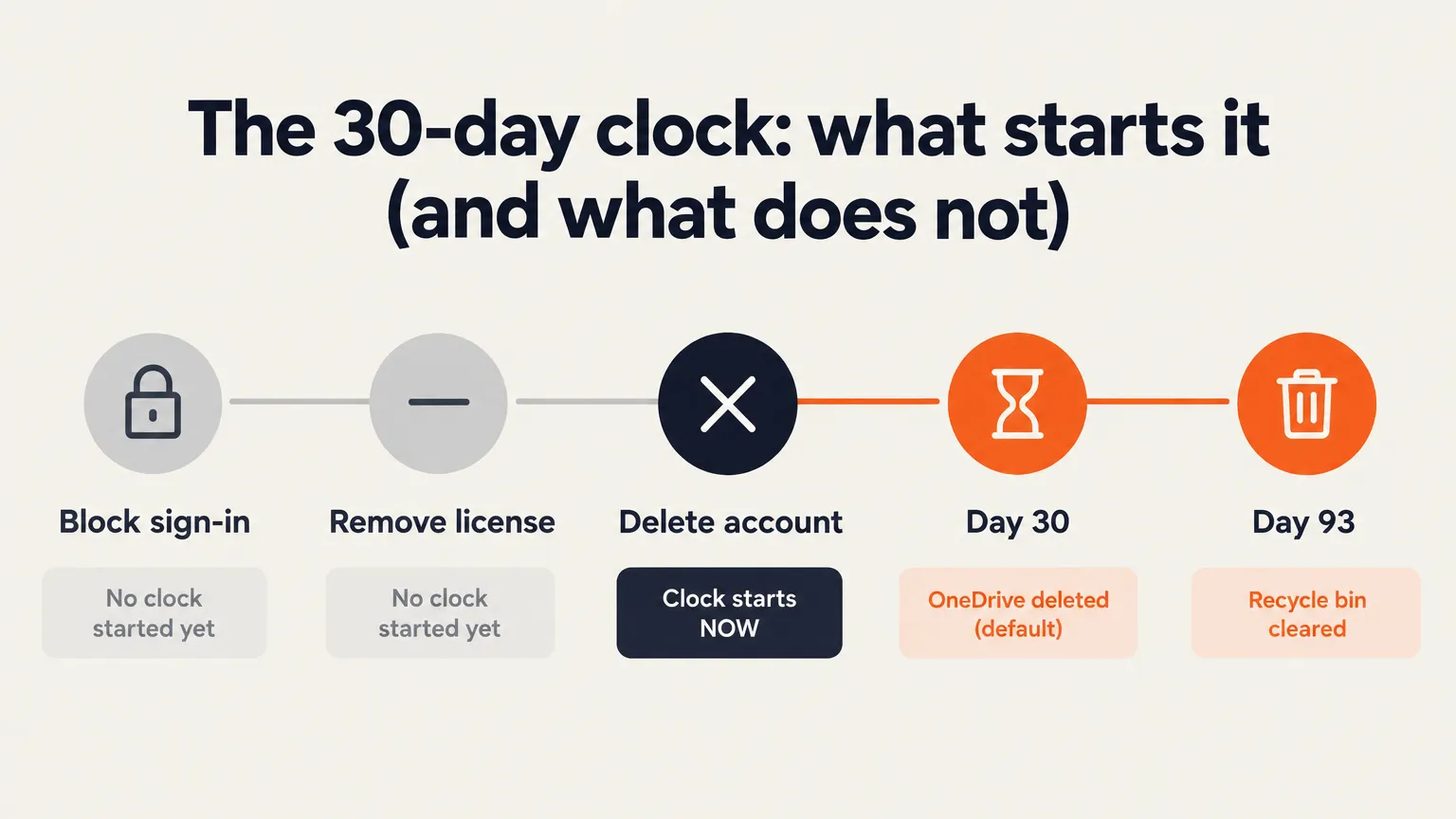
- The 30-day OneDrive retention window starts when you delete the account - not when you remove the license or block sign-in.
- If the employee's manager is set in Entra ID, that manager gets automatic temporary access and an email warning.
- The M365 admin center's deletion dialog lets you grant OneDrive access to a named person right at the moment of deletion - the easiest path when you remember to use it.
- Moving files copies only the latest version; version history does not transfer.
- The most common way MSPs lose files: someone deletes the account first, then asks where the files went.
- Rallied automates the surrounding offboarding steps - sign-in block, session revoke, license removal, mailbox conversion - so your tech can focus on who actually gets the files.
The classic Friday afternoon scenario: HR pings the helpdesk saying an employee's last day was two weeks ago. The tech pulls up the account - already deleted by someone who was trying to be helpful - and the OneDrive retention window has closed. Those files are gone.
This guide is about not being in that situation.
What Microsoft actually does when you delete an account
Before jumping into steps, it helps to understand what Microsoft is doing in the background - because there are a few surprises that catch admins out.
When a user account is deleted from Entra ID, Microsoft starts a cleanup clock on that user's OneDrive. The default retention period is 30 days. During that window, the OneDrive is accessible to admins and to any manager or successor you've granted access. After 30 days, the content moves to the site collection recycle bin for 93 days - but files there are not searchable, links pointing to them break, and restoring them requires PowerShell.
Two things that do not start the clock: blocking sign-in and removing the license. Both are common first steps in an offboarding sequence, and neither triggers deletion. Only deleting the account does. This matters because many MSPs disable the account first and move the files later - that's fine, as long as the account isn't actually deleted yet.
One additional gotcha: an unlicensed OneDrive can be archived on its 93rd unlicensed day, independent of the deletion clock. So "disable and don't delete" works as a holding pattern, but not indefinitely.
Manager auto-access. If the departing employee had a manager set in Entra ID, that manager automatically becomes temporary owner of the OneDrive when the account is deleted. They receive an email warning them that the files will be deleted on a specific date, with a link to review and move anything they need.
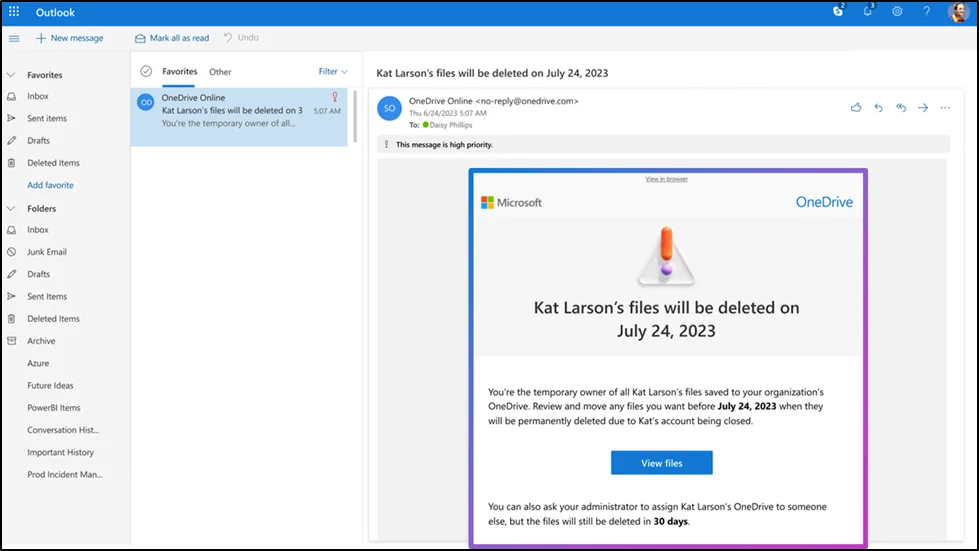
If no manager is set - or if access delegation is off in your SharePoint settings - nobody gets that notification and nobody gets automatic access. It just starts counting down silently.
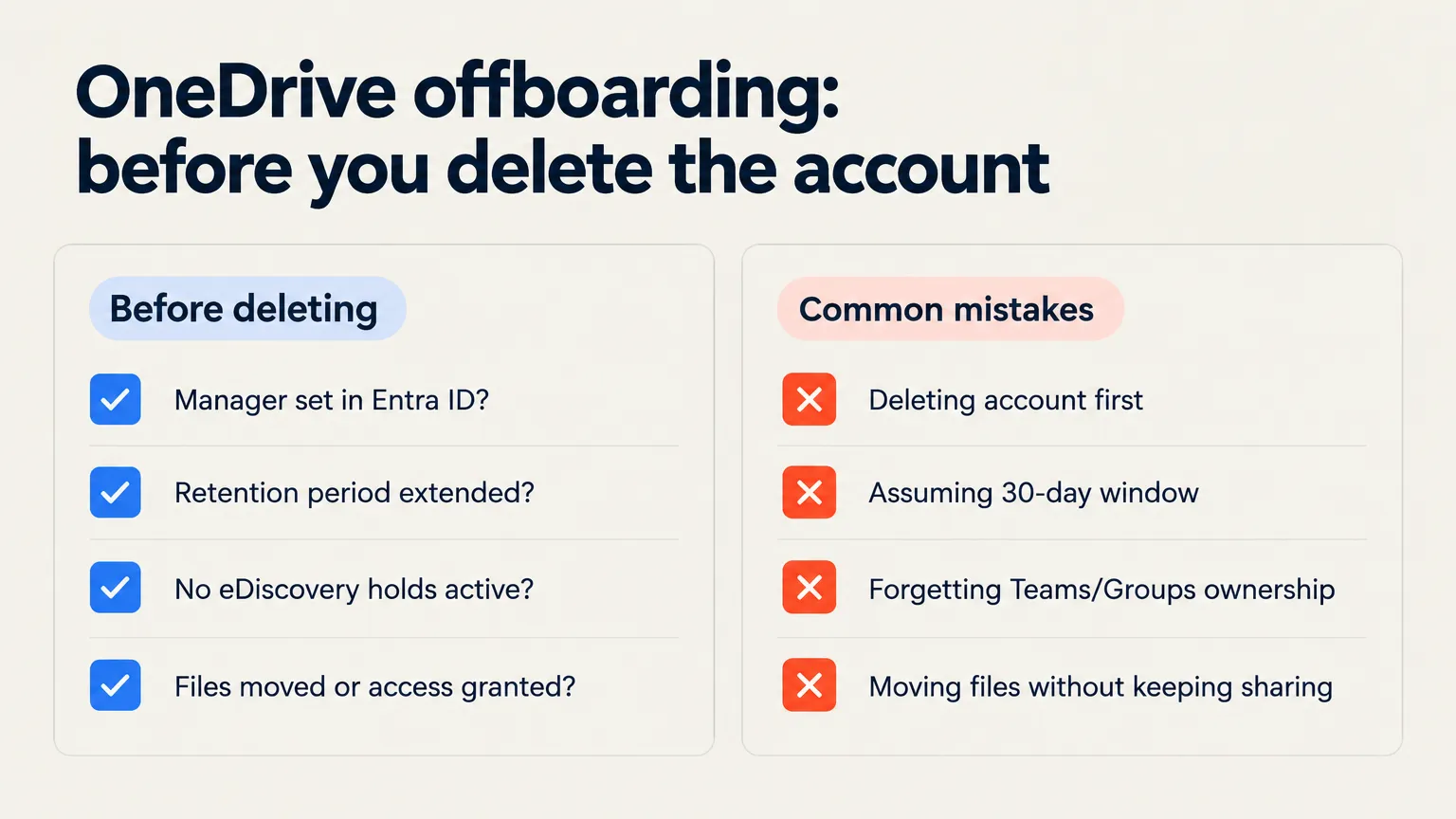
Before you delete anything, check these three things
The most expensive mistakes happen in the first five minutes of an offboarding, before anyone has looked at OneDrive at all.
1. Is the manager set in Entra ID? Go to Entra ID admin center > Users > find the departing employee > Edit properties > check the Manager field. If it's empty, either set it now or plan to grant access manually.
2. What's the current retention window in your tenant? The default is 30 days, but tenants can change it. You can check and update it in the SharePoint admin center, or via PowerShell:
Set-SPOTenant -OrphanedPersonalSitesRetentionPeriod <days>
If you're managing this across 30 client tenants, those settings are likely all different. Don't assume.
3. Is there a litigation hold or eDiscovery requirement? A hold overrides the retention clock in both directions - it can delete content sooner or keep it longer, depending on the policy. If the client is subject to any legal hold, sort that out before the offboarding sequence starts. The Microsoft 365 compliance center is where to check.
How to transfer the files: two paths
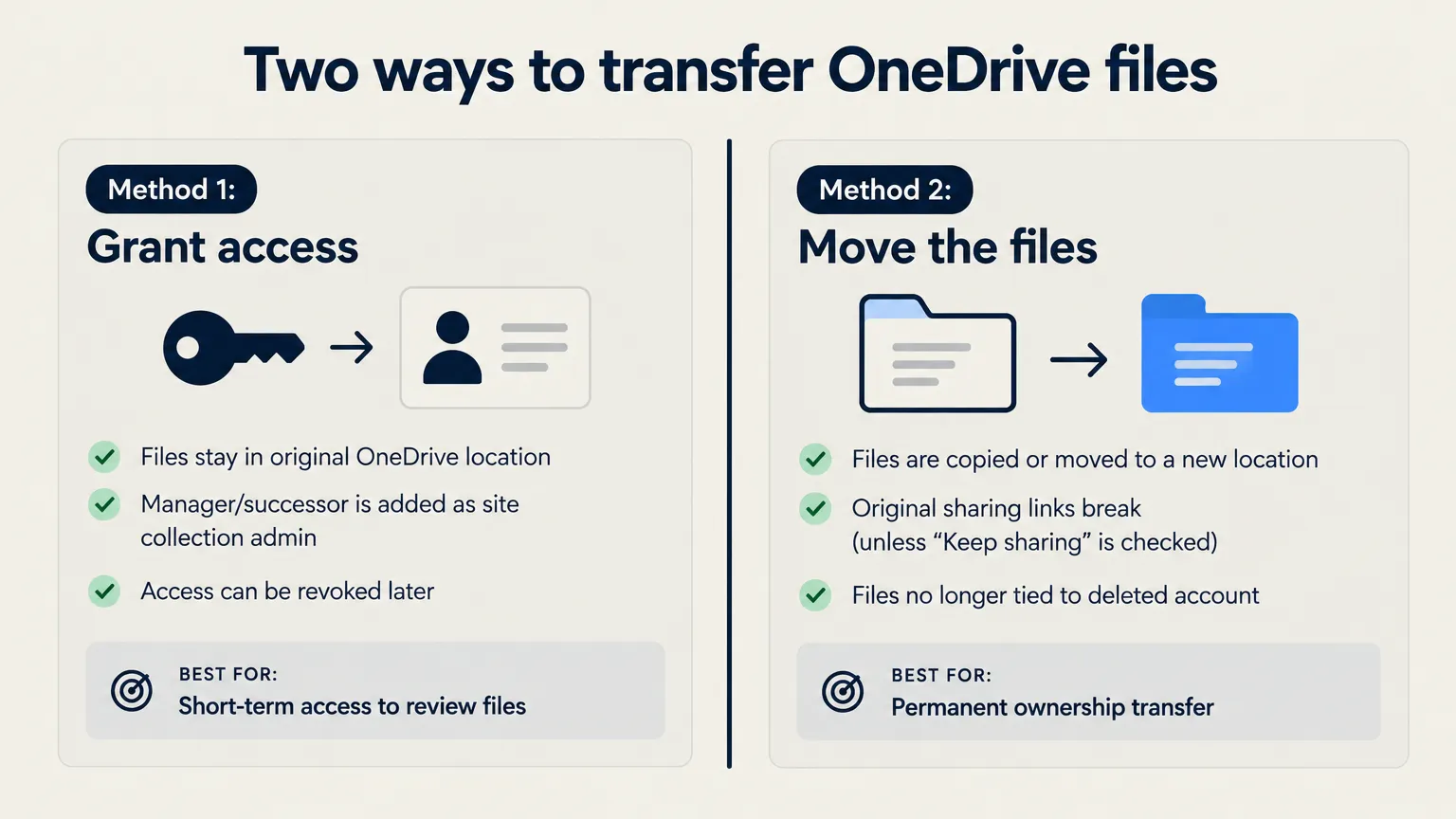
There are two practical approaches. Which one you use depends on whether you want to give someone ongoing access to the files in place, or move the files to a permanent new home.
Path 1: grant access at the moment of deletion (easiest)
When you delete a user in the Microsoft 365 admin center, the deletion dialog includes a checkbox: "Give another user access to Alex Wilber's OneDrive files for 30 days after the user is deleted." You name the recipient right there.
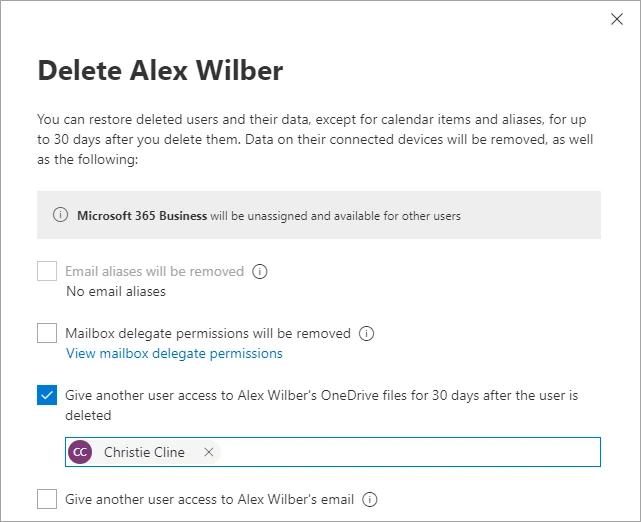
That person will receive an email and get temporary access to browse, download, or move the files. The access window is 30 days - same as the default retention period.
This is the path we'd reach for in most cases. It's one checkbox, it happens at the natural moment in the workflow, and it means someone who actually knows what those files are (the manager or successor) can decide what to keep.
Path 2: grant access after the fact (via SharePoint admin)
If the account was already deleted and you forgot the checkbox - or if you need to add a different person than whoever got the initial access - you can still grant access through the SharePoint admin center, as long as the OneDrive hasn't expired.
Navigate to: SharePoint admin center > More features > User profiles > Open > Manage User Profiles. Find the former employee, right-click, choose Manage site collection owners, and add the new user as a site collection administrator.
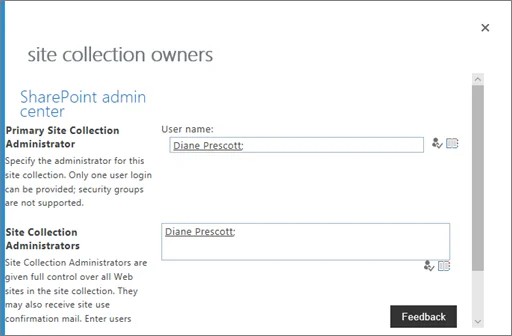
One important note: Microsoft warns against removing the former employee as the primary site collection administrator. Leave them in that role; just add the successor. Removing the original owner breaks experiences elsewhere.
Moving the files yourself
If you want to move files rather than just granting access, go to the Microsoft 365 admin center > Users > Active users (or deleted users during the retention window) > select the user > OneDrive tab > Create link to files. This opens the departed employee's OneDrive and you can use Move to or Copy to to transfer files to another location.
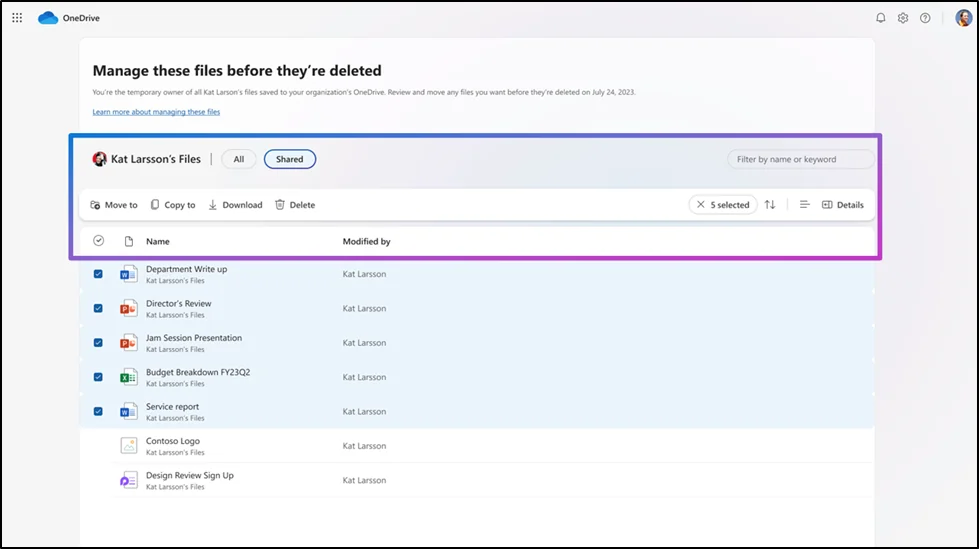
One important caveat from Microsoft's docs: when you move or copy a versioned document, only the latest version transfers. If you need version history, you'll need to handle that separately - download the full file with its history, or use third-party migration tooling.
If the files were shared with other colleagues who still need access, use Move to with "Keep sharing with the same people" checked. Without that option, those sharing relationships break and colleagues find themselves with broken links.
Handle the mailbox, Teams, and Groups too
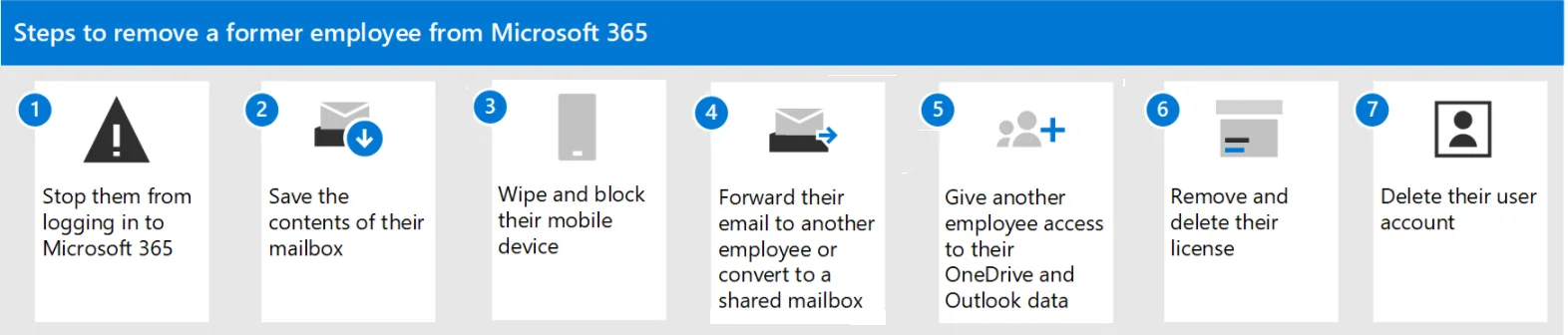
OneDrive is one piece of a larger puzzle. The departing employee likely also has:
- A mailbox - convert to a shared mailbox before removing the license. Remove the license first and you start a 30-day deletion clock on the mailbox. The correct sequence: convert to shared, grant manager Full Access, then remove the license.
- Teams channel and group ownership - if they were an owner of Teams channels or Microsoft 365 Groups, those need a new owner. Microsoft 365 Groups without an owner can become inaccessible.
- SharePoint site collection admin rights - if they were an admin on any SharePoint sites, those need to be updated separately.
The full M365 offboarding sequence is longer than most people expect - which is exactly why it gets done inconsistently at scale.
The mistakes that keep coming back
A few patterns we see on repeat:
Deleting the account before checking the files. This is the number-one cause of lost files. The urge to "clean up the account" is understandable - but once the account is deleted and the 30-day window closes, those files are gone. Build a step into your offboarding checklist: confirm OneDrive is handled before account deletion, not after.
Assuming the default retention is long enough. 30 days sounds like a lot until it's a holiday period, a backlog, or a client who doesn't respond to emails. Check the tenant setting, extend if needed, and document it on the ticket.
Not checking whether a manager is set. The auto-access feature is excellent when it works. When no manager is set in Entra ID, it doesn't work and nobody gets notified. This is especially common in smaller clients who have never touched the manager field in their directory.
Moving files without keeping sharing. A colleague who had a shared link to a document finds it broken the next day. No drama, just quiet data loss. Use "Move to" with "Keep sharing with the same people" checked when shared access matters.
Forgetting Teams, Groups, and SharePoint. We've seen MSPs nail the OneDrive handoff and then leave the departing employee as the owner of three Teams channels and a SharePoint site. Those are separate transfers, and they don't get automated when OneDrive gets automated.
Only getting the latest version. If a client needs to roll back to a document from three months ago, the version history matters. Know before you move whether that's a requirement.
Try Rallied
The steps above still require a tech to make a judgment call: who gets the files, what can be archived, what needs to stay accessible. That judgment isn't something you automate away.
But the surrounding work - block sign-in, revoke active sessions, remove the user from every group, unassign the license, convert the mailbox to shared, reduce the Pax8 seat count - that's all mechanical. It's the work that takes 20 minutes per offboarding, multiplied across every client, every departing employee.
Rallied runs that entire sequence from a single PSA ticket. When an offboarding request arrives in ConnectWise, HaloPSA, Autotask, or SuperOps, Rallied picks it up, executes the steps across M365 and your other connected systems, and closes the ticket - without a tech opening the customer tenant. The Microsoft 365 integration handles account disable, session revocation, group cleanup, license removal, and mailbox conversion in one pass, with an optional approval gate before anything runs.
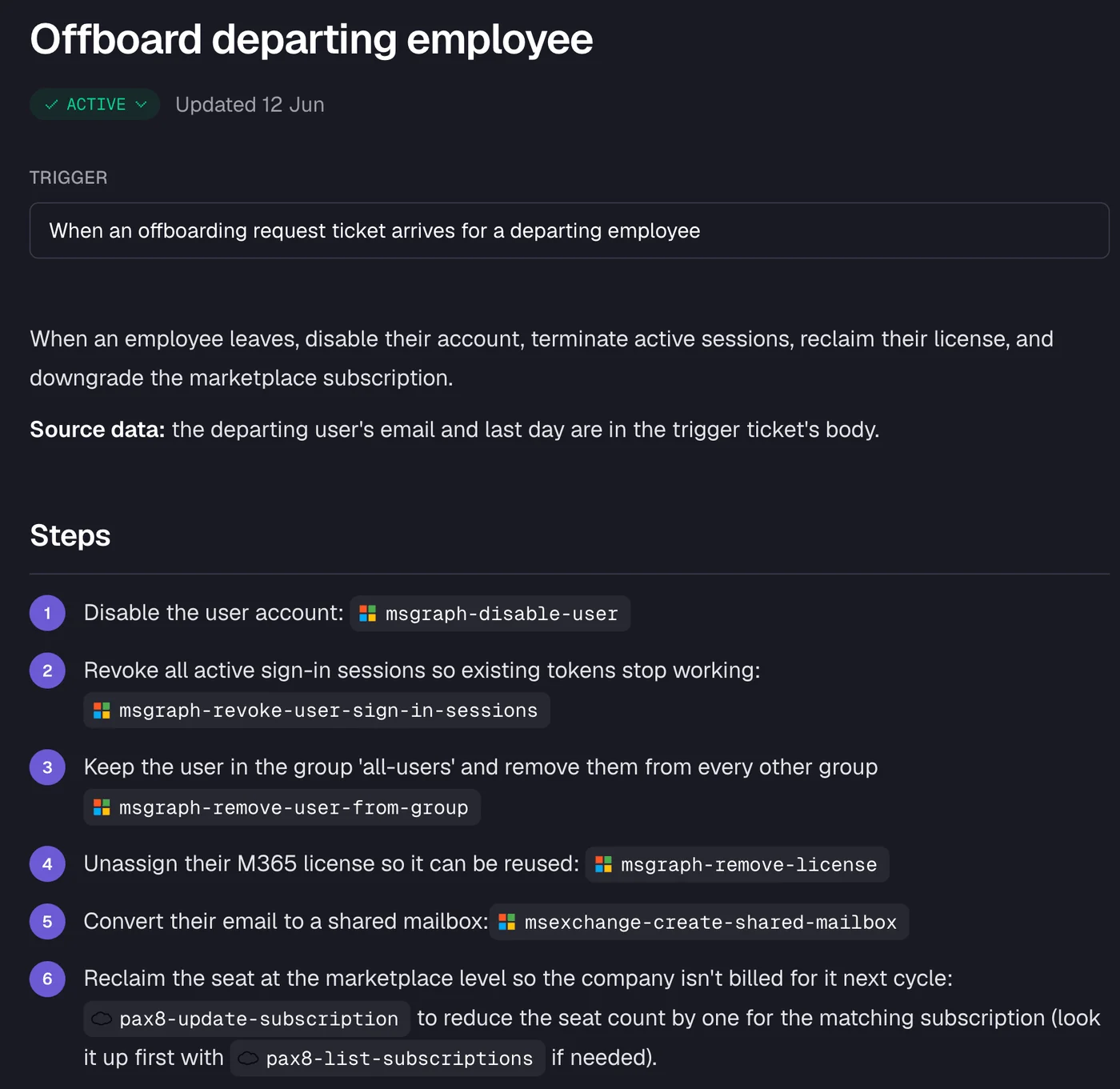
Your tech's time goes to the parts that need a human decision. The rest runs itself.
Rallied is $300/month for 2,000 credits. A standard offboarding that touches M365 and your distributor costs 8 credits. The 14-day free trial starts at rallied.ai.
For the wider picture, read How MSPs automate user onboarding in 2026.
Frequently Asked Questions
What happens to OneDrive files when an employee account is deleted from Microsoft 365?
When a user account is deleted from Microsoft 365, their OneDrive is retained for 30 days by default. If the employee had a manager set in Entra ID, that manager automatically receives temporary access and an email notification. After 30 days, the OneDrive is permanently deleted unless the retention period has been extended or a hold is in place. See Microsoft's retention docs.
Does removing the Microsoft 365 license start the OneDrive deletion clock?
No - only deleting the user account from Entra ID starts the retention clock. According to Microsoft, blocking sign-in or removing a license does not trigger deletion. That said, an unlicensed OneDrive can be archived on its 93rd unlicensed day, so do not leave an account unlicensed and undeleted indefinitely.
How do I give a manager access to a former employee's OneDrive?
Two main paths. First, at the moment of deletion: in the Microsoft 365 admin center, the deletion dialog includes a checkbox - 'Give another user access to their OneDrive files for 30 days' - where you name the recipient. Second, after the fact: in the SharePoint admin center, go to More features > User profiles > Manage User Profiles, find the former employee, right-click, choose Manage site collection owners, and add the successor as a site collection administrator.
Can I extend the 30-day OneDrive retention period?
Yes. Admins can change the window in the SharePoint admin center, or by running Set-SPOTenant -OrphanedPersonalSitesRetentionPeriod <days> in PowerShell. The period can be extended well beyond 30 days. Check the current setting in your tenant before promising a client a specific window, since it may already have been customized.
What else needs to be transferred when an employee leaves beyond OneDrive?
OneDrive is one piece. You also need to handle the mailbox (convert to shared before removing the license), Teams ownership, Microsoft 365 Group ownership, SharePoint site collection admin rights, and any shared drives or external sharing permissions the employee held. Each is a separate transfer step. Rallied's M365 offboarding guide covers the full sequence.