How to reset MFA in Microsoft 365: a practical guide for MSPs

TL;DR
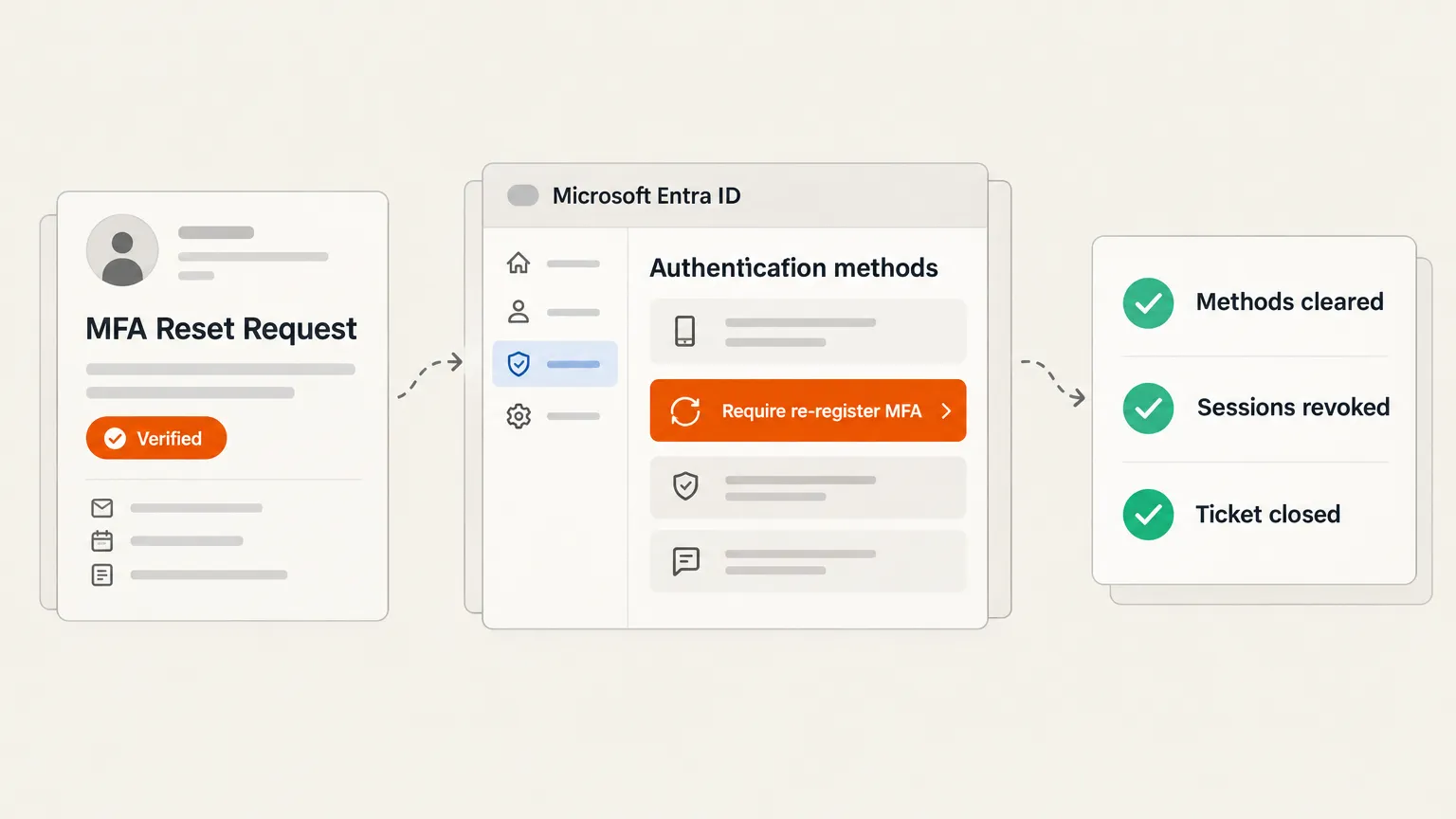
Resetting MFA for a Microsoft 365 user takes about two minutes in the Entra admin center: go to Entra ID > Users, open the user's Authentication methods, and hit Require re-register MFA. That wipes their Authenticator app, phone numbers, and OATH tokens - but not passkeys or Windows Hello, so check the method list after. The harder part isn't the click; it's making sure you're actually talking to the right person before you do it. An MFA reset hands over the second factor, and social engineering attacks specifically target that moment. If your MSP runs a lot of these, Rallied handles the whole loop - verify, reset, revoke sessions, close ticket - autonomously, with an MFA push to the employee's own phone as the identity gate.
Why MFA resets land on the help desk so often
Lost phones. New phones. Factory resets. QR codes scanned halfway through before the coffee got cold. The Microsoft Authenticator cloud backup restoring account names but not the token secrets (more on that trap below). Whatever the reason, "I can't log in because of MFA" is one of the most common tickets MSPs handle, and in a Microsoft 365 environment it means someone needs to touch Entra ID.
The good news: the fix is fast once you know where to go. The bad news: the fix is also the most exploited moment in help desk security. Mandiant's M-Trends 2026 report found that highly interactive voice phishing - a threat actor calling the help desk and talking a tech into performing a reset - was the second most common initial infection vector that year, at 11% of all compromises. The MGM Resorts breach in September 2023, which cost an estimated $100 million, started with a ten-minute phone call to the IT help desk.
So the technical steps are the easy part. We're going to cover both.
Three ways to reset MFA in Microsoft 365
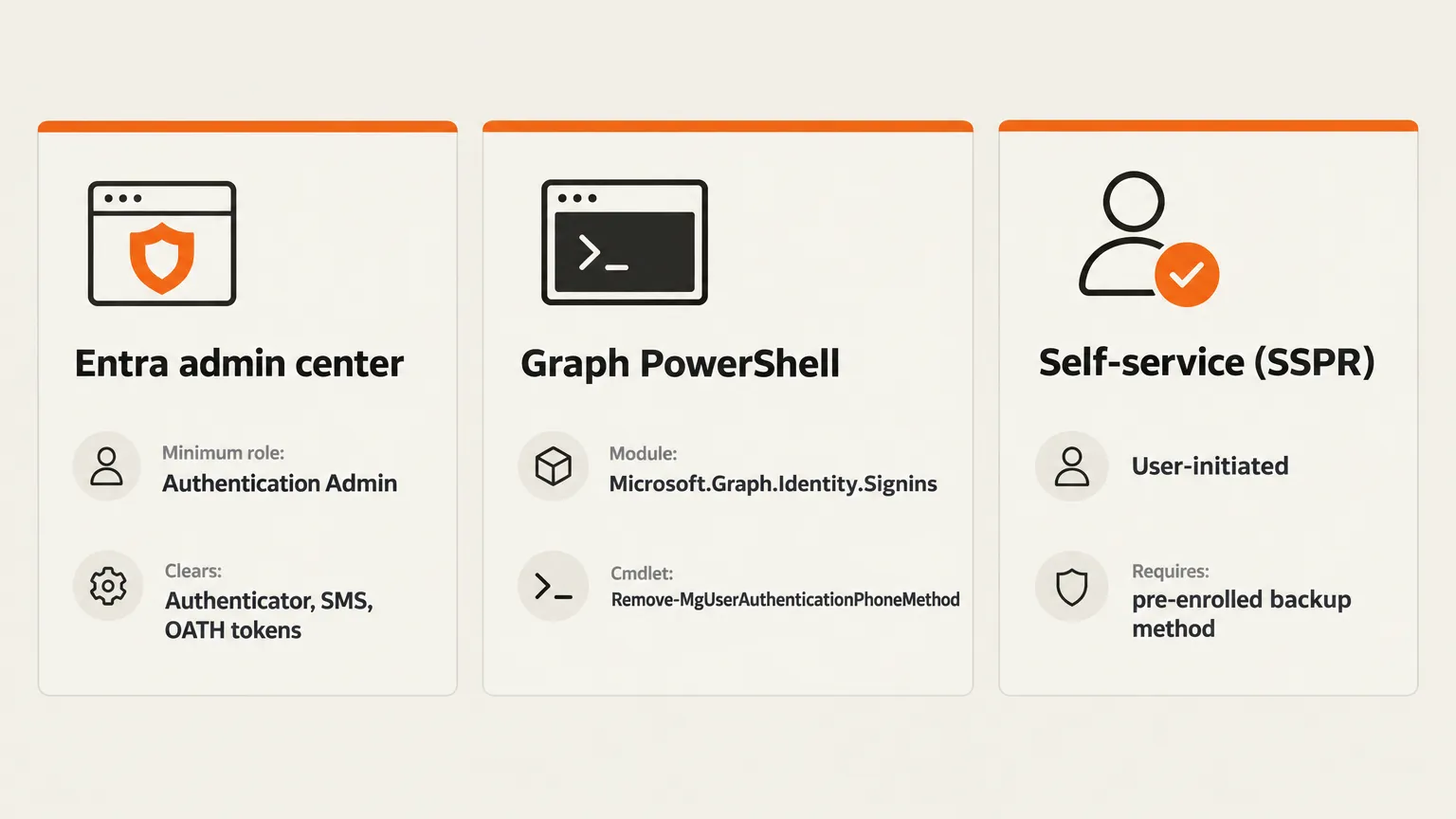
There isn't one universal reset button. Depending on what the user needs and what your tenant's configuration looks like, you have three main paths.
Path 1: Entra admin center (the right path for most resets)
This is what you'll use day-to-day. The minimum role required is Authentication Administrator - a deliberately scoped role that lets you reset methods for other users without giving you Global Admin privileges.
Steps (source):
- Sign in to entra.microsoft.com as at least Authentication Administrator
- Go to Entra ID > Users
- Select the user, then click Authentication methods
- At the top of the pane, click Require re-register MFA
That's it. The user gets prompted to set up a new method at their next sign-in.
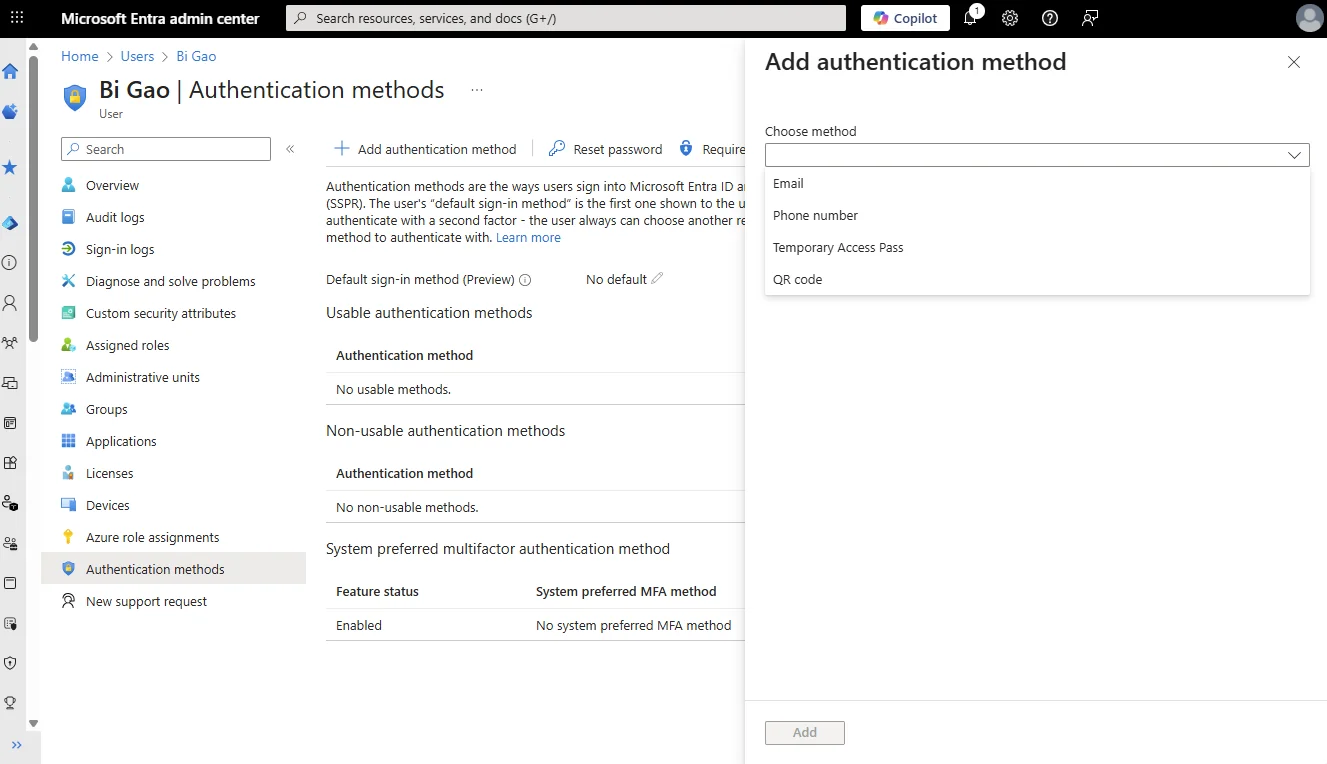
The same pane also gives you three other actions:
- Reset password - sets a temporary password the user must change at next sign-in
- Revoke sessions - invalidates all refresh tokens, forcing re-authentication across every active session and app. Microsoft specifically recommends this after a lost or stolen device, because it also removes "remember MFA on trusted devices" cookie status.
- Delete app passwords - breaks legacy-auth clients until a new app password is created. Use this when you need to cut off legacy connections after a compromised account.
You can also add a new method directly - a phone number, Temporary Access Pass, or QR code - from the + Add authentication method button in the same pane.
Path 2: Graph PowerShell (for bulk or scripted resets)
If you're managing multiple users or want a scriptable path, Microsoft Graph PowerShell is the tool. Install the module and connect:
Install-Module Microsoft.Graph.Identity.Signins
Connect-MgGraph -Scopes "User.Read.all","UserAuthenticationMethod.Read.All","UserAuthenticationMethod.ReadWrite.All"
From there you can list, add, or remove phone-based methods per user:
Get-MgUserAuthenticationPhoneMethod -UserId user@contoso.com
Remove-MgUserAuthenticationPhoneMethod -UserId user@contoso.com -PhoneAuthenticationMethodId <id>
The documented cmdlets cover phone methods specifically. Other method types (Authenticator app registrations, passkeys, Temporary Access Passes) go through the Microsoft Graph authentication methods API directly. For a full wipe of all registered methods at scale, the Entra admin center's "Require re-register MFA" action on the user's Authentication methods pane is still the cleaner path - it handles the full set in one click.
Path 3: Self-service (for users who still have a backup method)
Before anything else, check whether the user actually needs you. If they still have a registered backup method - a secondary phone, an email OTP, a FIDO2 key, or backup codes - they can often unblock themselves at mysignins.microsoft.com/security-info without an admin touching anything.
The Authenticator cloud backup trap is worth flagging here: when a user restores the Authenticator app from a cloud backup onto a new phone, the app restores account names but not the underlying token secrets for work accounts. The user sees the account listed, tries to approve a prompt, and can't. They call the help desk convinced their MFA is broken. It's not broken - it needs re-registration. Check the method list first before escalating to a full admin reset.
Also worth knowing: Microsoft Entra's Self-Service Password Reset only works for users who enrolled authentication methods in advance. Users who never set up backup methods can't use SSPR and do need an admin to intervene.
What "Require re-register MFA" actually deletes - and what it doesn't
This is the detail that trips people up most often.
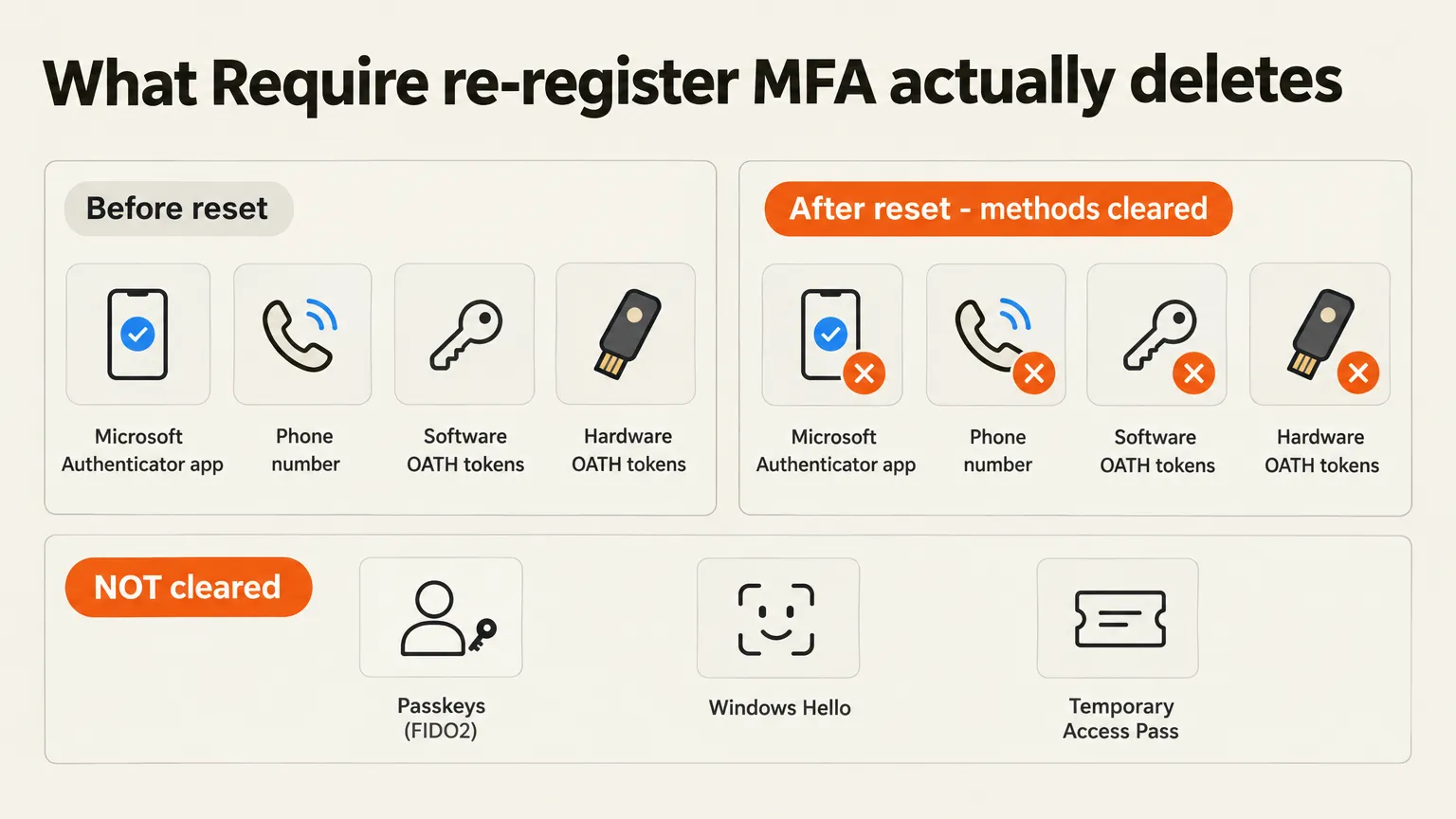
According to Microsoft's documentation, the action clears:
- Phone numbers (SMS and voice call methods)
- Microsoft Authenticator app registrations
- Software OATH tokens
- Hardware OATH tokens
It does not automatically clear:
- Passkeys (FIDO2) - hardware security keys registered to the account
- Windows Hello for Business - device-bound biometric credentials
- Temporary Access Passes - time-limited bypass codes
This matters. If you run "Require re-register MFA" on a compromised account and the attacker had already registered a FIDO2 key or a Windows Hello credential, that access path is still open. Always review the full method list after the action and manually remove anything that shouldn't be there.
Per-user MFA vs Conditional Access: check before you troubleshoot
One of the most common reasons an MFA reset produces confusing results is not knowing which enforcement mechanism is in play.
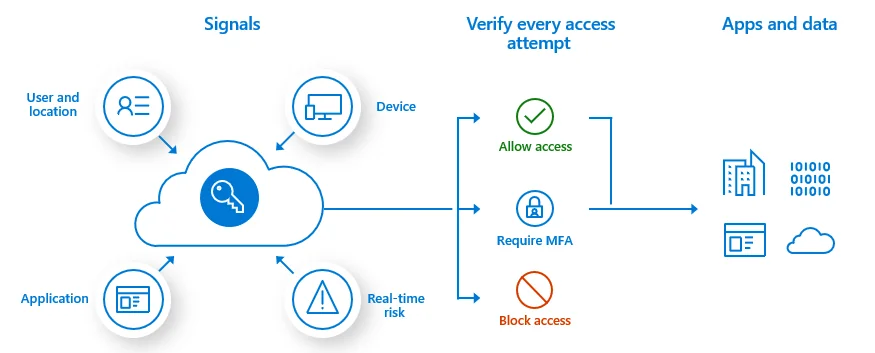
There are two ways MFA gets enforced in Entra ID:
Conditional Access is the modern path. It's a policy engine that evaluates user, location, device, app, and risk signals at every sign-in and decides whether to allow access, require MFA, or block entirely. Microsoft recommends this for all tenants with Entra ID P1 or P2 licensing, and it's where the sophisticated controls live - risk-based triggers, sign-in frequency, device compliance gates.
Per-user MFA is the legacy per-account toggle. It still works, but Microsoft's official guidance is not to use it on tenants that have Conditional Access policies in place. If you do, you'll see users show as "Disabled" in the per-user MFA view even though CA is enforcing MFA for them. That's expected behavior, not a fault - but it confuses every tech who hasn't seen it before.
The important thing for resets: "Require re-register MFA" only clears what the user has registered. It doesn't change whether MFA is required. That decision still lives in your CA policy (or in per-user MFA if you're still running it). A reset on a CA-managed tenant works fine. A reset on a per-user MFA tenant can leave the user in an unexpected state if the legacy setting has config the CA policy never touches. Check which system is enforcing before you start troubleshooting a reset that isn't resolving the way you expected.
Security defaults (for Entra ID Free tenants) are the third tier - no custom rules, just Microsoft's baseline prompts. If your client is on Free with security defaults, you can still reset MFA via the admin center, but you can't set up custom enforcement rules around the reset process.
The part most guides skip: who's on the other end of the phone?
An MFA reset hands over the second factor. That's worth saying plainly, because every attacker targeting your clients knows it too.
The technique is called vishing - voice phishing - and it's not exotic. A threat actor spends a day or two mapping the target: LinkedIn for the employee's name and manager, the company directory for the IT desk number, maybe a quick search for the helpdesk software you're running. Then they call, claim to be the employee, say the phone was stolen, and ask for an MFA reset. If the tech is under pressure and verification is light, the attacker walks away with control of the account.
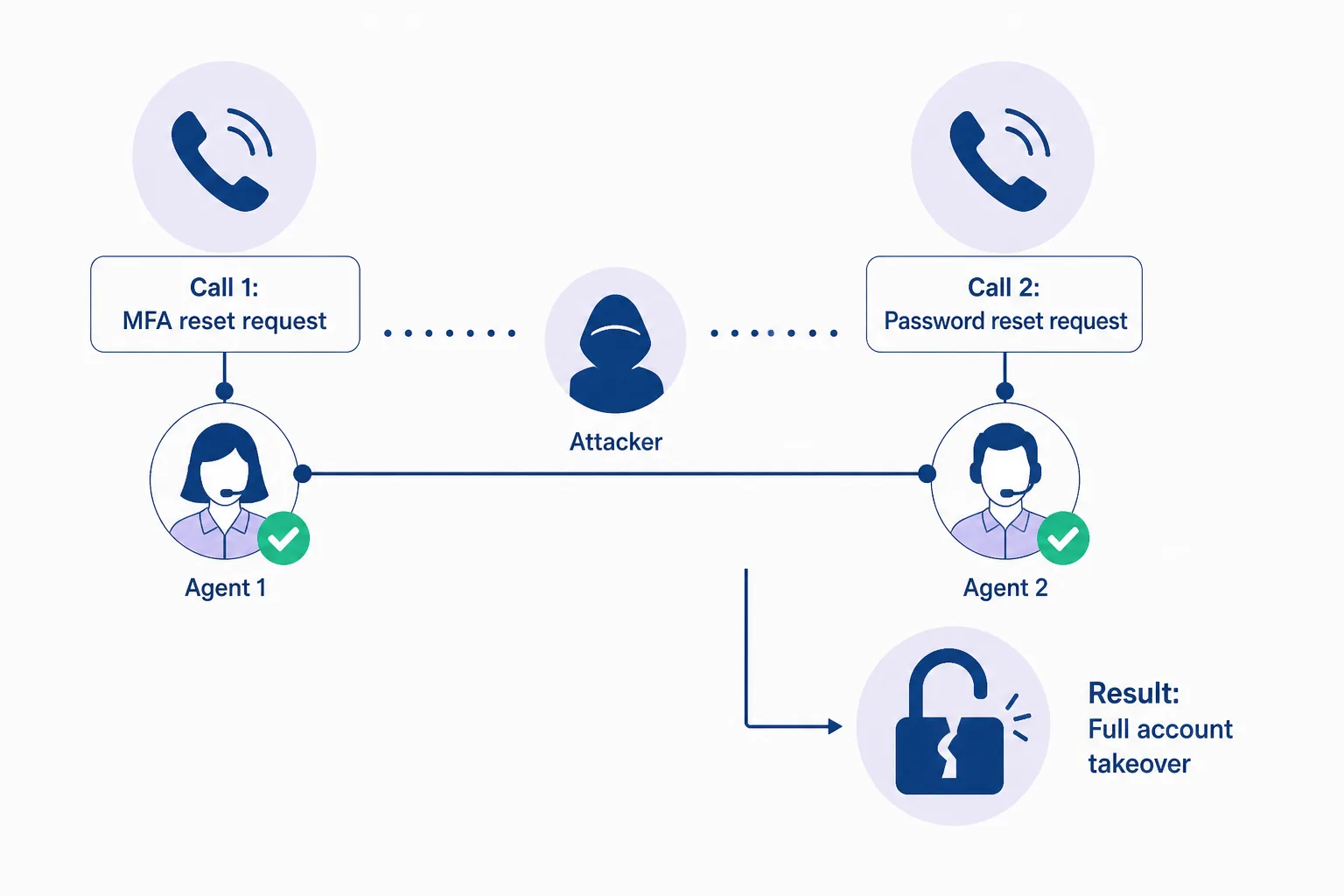
The Scattered Spider / UNC3944 group - the same crew behind the MGM breach - refined this into a two-call split attack: one call to reset MFA (handled by one tech), a second call to reset the password (handled by a different tech, different shift). Neither tech sees the full picture. The result is full account takeover. Caesars Entertainment reportedly paid a $15 million ransom after the same technique was used against them.
The fix isn't expensive tooling. It's a verification standard that holds regardless of how urgent or senior the caller sounds.
A verification framework that actually holds
This three-tier approach comes from published MSP runbook guidance; adapt it to your clients' requirements:
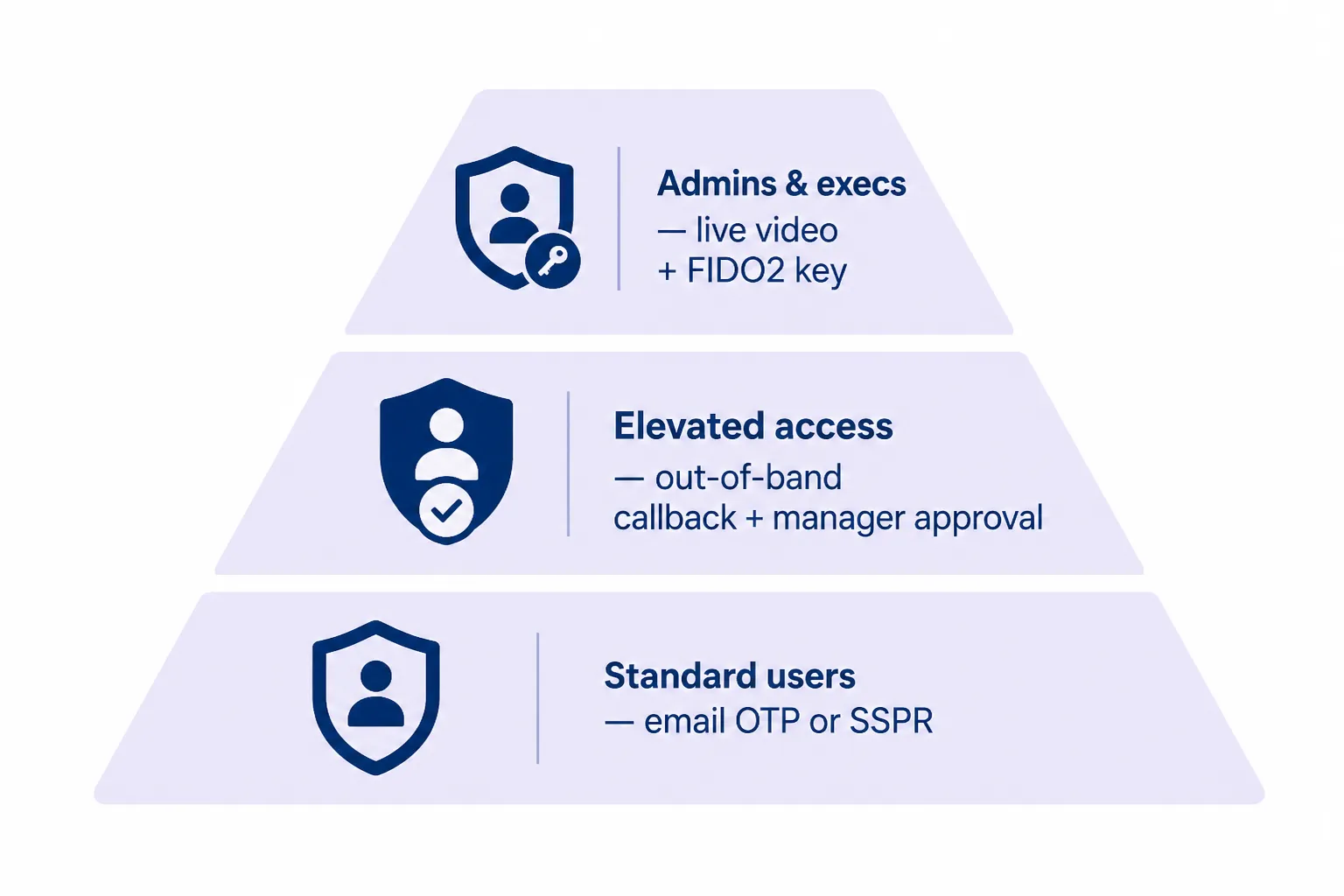
Tier 1 - standard users:
- Self-service password reset first if they have a backup method
- Email OTP to the directory-sourced corporate address as fallback
- Callback to a directory-registered phone number for exceptions (not a number given during the call)
- Avoid SMS as the sole factor - Microsoft is retiring SMS-based MFA by February 2027
Tier 2 - elevated access (service accounts, shared mailboxes, anyone with admin-lite roles):
- Out-of-band callback to HR's registered number
- Manager confirmation via a verified channel - an email claiming to be from the manager doesn't count
- Session revocation on every password reset at this tier
Tier 3 - Global Admins, Exchange Admins, executives:
- Live video call on Teams with face matched against the photo of record. For accounts with Entra ID Protection P2, this combines with risk-based CA to block or force a password change
- Manager confirmation through a verified separate channel
- FIDO2 hardware keys as the standard second factor for privileged accounts going forward - Microsoft is moving Entra to passkeys by default from September 2026
A few rules that apply across all tiers:
- Verification comes first. No change to the account until verification is complete. If it can't be completed, the reset doesn't happen.
- Record the ticket. Who verified, which methods were used, when. This matters for both security audits and for identifying cross-ticket patterns.
- Urgency is a red flag, not a reason to shortcut. An IT support runbook published by MSP practitioners is explicit: pressure to skip verification is itself a warning sign.
- Watch for clustering. Multiple "lost phone" or "MFA not working" tickets for the same account or user group in a short window is worth flagging to a security team, not just processing as individual help desk tickets.
The admin lockout case
One edge case worth calling out separately: if the locked-out account is the Global Admin - especially if it's the only Global Admin on the tenant - the standard admin-center path is closed. The admin can't authenticate to perform the reset themselves.
The answer, per Microsoft guidance, is the Microsoft Data Protection team, which is authorized to recover access in sole-administrator cases. It's slower and more formal than a standard user reset. This is exactly why every tenant should have at least two Global Admins with separate MFA methods registered - it's an operational continuity requirement, not a nice-to-have.
The safe reset workflow, end to end
Putting it all together:
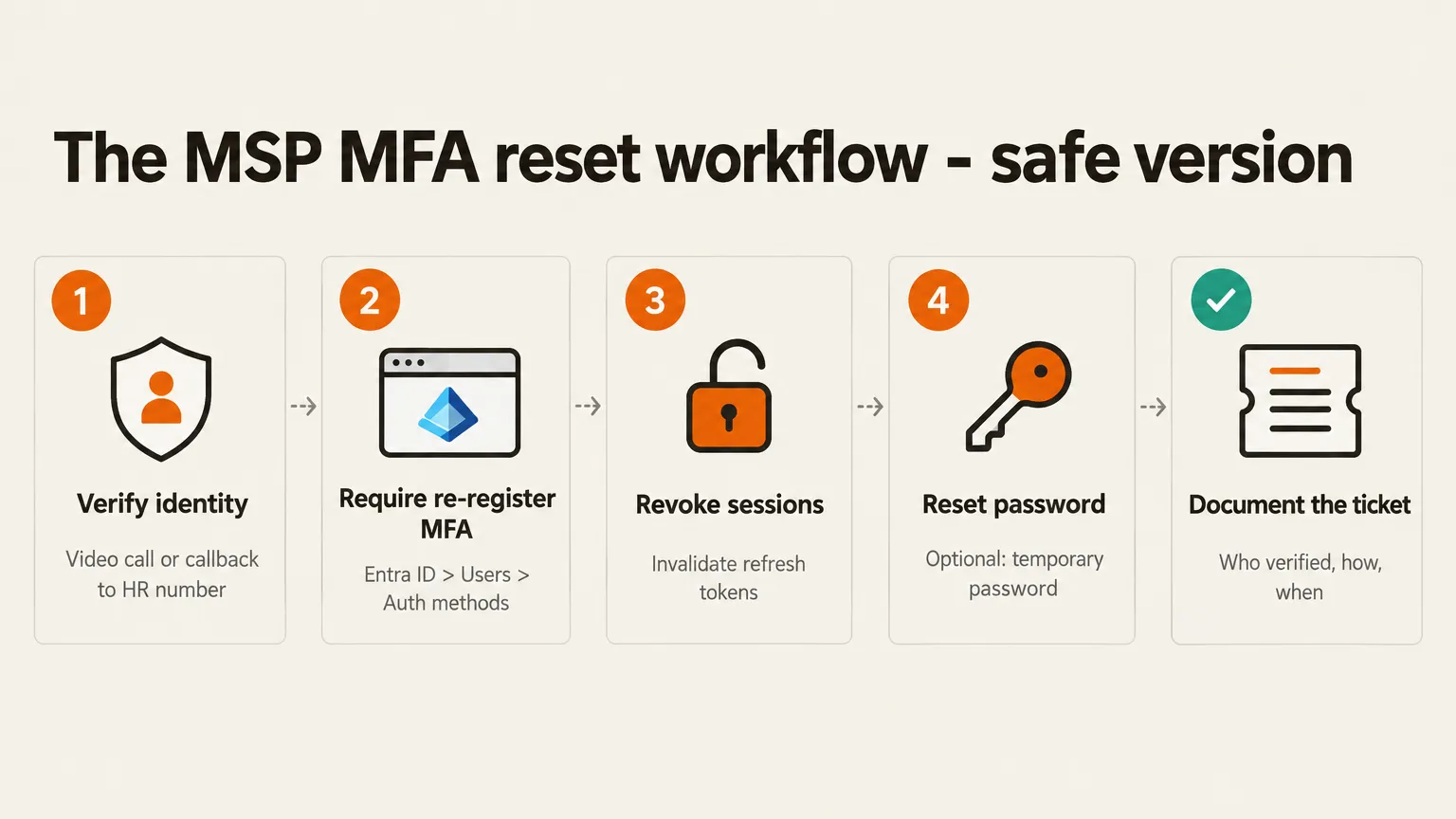
Step 1 - Verify identity first. Use the tier-appropriate method above. Document who verified and how in the ticket before touching the account.
Step 2 - Require re-register MFA via Entra ID > Users > Authentication methods > Require re-register MFA.
Step 3 - Revoke sessions. Hit Revoke sessions in the same pane. This invalidates all refresh tokens, so any stolen session tokens stop working immediately - not just the ones from the compromised device.
Step 4 - Check the method list. Confirm passkeys, Windows Hello credentials, and Temporary Access Passes are what you expect. Remove anything unfamiliar.
Step 5 - Reset the password if needed. For security incidents (not just a lost phone), a password reset alongside the MFA reset is standard - both factors get rotated.
Step 6 - Deliver and document. If you're issuing a temporary password, use a one-time link (apps like One-Time Secret are built for this) rather than putting the password in the ticket or sending it in plain text. Write the documentation: methods used, verification completed, actions taken, timestamp.
App passwords
One more thing that frequently gets forgotten: if the user has legacy app passwords configured for older clients that don't support modern auth, those remain active until you explicitly delete them. In the Microsoft Entra admin center, you can delete all app passwords for a user via Per-user MFA in the Users pane - select the user, go to Manage user settings, and check Delete all existing app passwords generated by the selected users.
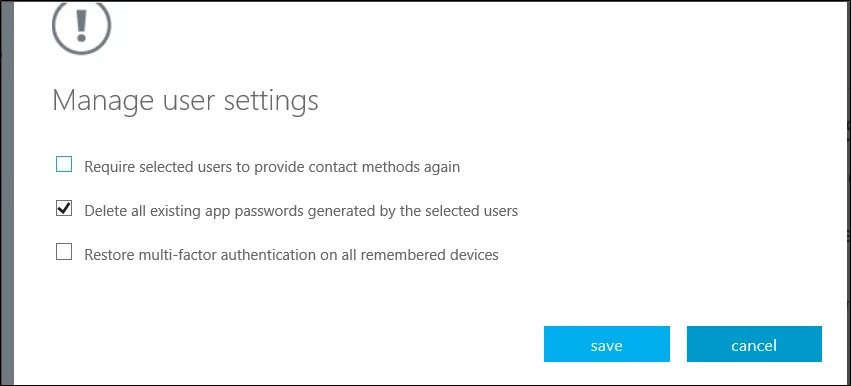
This is especially relevant when a user has had their account flagged as compromised - legacy-auth clients that use app passwords won't be blocked by a session revocation alone.
When human verification isn't the bottleneck - it's the volume
For most MSPs, the problem isn't that you don't know how to reset MFA. The problem is that it's ticket number forty-three today, your senior tech who knows the process is handling a P1 elsewhere, and the junior on shift is improvising the verification step because nobody wrote it down.
That's the operational gap Rallied is built to close.
Rallied is an AI technician that connects to your PSA (ConnectWise Manage, HaloPSA, Autotask, SuperOps) and Microsoft 365, picks up reset tickets automatically, and works through the execution side of the reset - the part after identity is confirmed - without a human touching it.
Here's how it handles a password reset ticket (the full flow is on the feature page):
- Match the tenant. Finds the right Microsoft 365 tenant from the requester's email domain.
- Check the account. Verifies the account exists, checks lock status, and reviews whether Microsoft has flagged it as risky.
- Verify the person. Sends an MFA push through Traceless to the authenticator app the employee already carries - Microsoft Authenticator or Duo Mobile. Nothing changes on the account until they approve. A caller who knows an employee ID and manager name gets past most help desk scripts; a push to the real employee's phone is something they can't fake.
- Reset and revoke. Resets the password and revokes every open session in one pass.
- Deliver securely. Sends the temporary password as a One-Time Secret link that works once, with a 24-hour expiry.
- Close the ticket. Writes the internal notes and closes the ticket in the PSA.
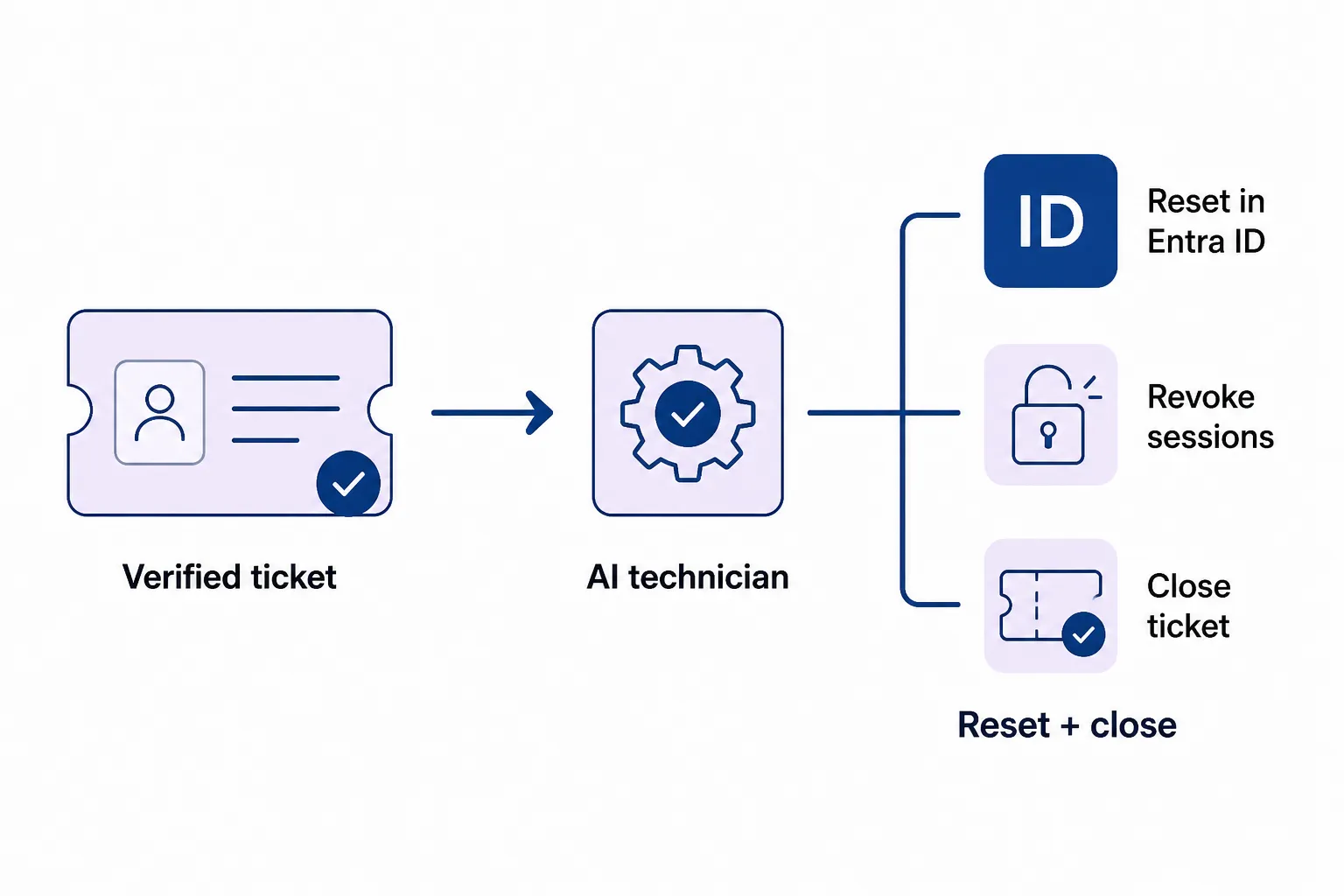
Rallied doesn't do the identity verification step - that's the tier-appropriate human (or SSPR for self-service users) - but once the ticket arrives as a verified reset request, the execution is autonomous. A completed reset costs 3 credits, which works out to $0.45 on the standard plan ($300/month for 2,000 credits, $0.15 per credit). Tickets that couldn't be completed or weren't acted on aren't charged.
"Rallied helps ensure consistency in our processes... customisable workflows guide troubleshooting and ensure the agent stays on scope."
- CTO at Cyber Solutions, G2 review
The CRN named Rallied one of 10 Hot MSP Tools for AI and Agentic Automation in 2026. Most MSPs go live in under a week, starting in Plan Mode - which shows exactly what the agent would do without changing anything, so you can verify the behavior before switching to live execution.
Try Rallied
Rallied is an AI technician for MSPs that handles L1 and L2 tickets autonomously - password resets, account unlocks, MFA-related execution, offboarding, and more. It connects to your PSA and Microsoft 365, works from your existing runbooks, and completes the ticket from verified request to closed ticket without a human in the loop.
If your team is spending an hour a day on reset tickets that follow the same five steps every time, that's the place to start. See how the password reset automation works - or read more about how Rallied approaches Microsoft 365 automation.
For the wider picture, read IT Help Desk Procedures.
Frequently Asked Questions
How do I reset MFA for a user in Microsoft 365?
Sign in to the Microsoft Entra admin center as at least an Authentication Administrator. Go to Entra ID > Users, select the user, click Authentication methods, then click Require re-register MFA. This deletes the user's phone numbers, Microsoft Authenticator registrations, and software OATH tokens, and prompts them to re-register at next sign-in.
Does 'Require re-register MFA' clear all authentication methods?
No. It clears phone numbers, Microsoft Authenticator apps, and software and hardware OATH tokens. It does not automatically clear passkeys (FIDO2), Windows Hello for Business, or Temporary Access Passes. Always check the method list after running the action to confirm what was actually removed.
What is the minimum role needed to reset MFA in Microsoft 365?
Authentication Administrator is the minimum role required to reset MFA methods for other users in the Entra admin center. Users cannot update their own MFA methods through the admin center; they use My Sign-Ins > Security info for self-service changes.
What should an MSP do if the admin account is locked out of MFA?
If the locked-out account is the sole Global Administrator on a tenant, the standard admin-center reset path is closed because the admin cannot authenticate. Microsoft's guidance in this scenario is to contact the Microsoft Data Protection team. This is why every tenant should have at least two Global Admins with separate MFA methods registered.
How can an MSP automate MFA and password reset tickets in Microsoft 365?
An AI technician like Rallied connects to your PSA (ConnectWise, HaloPSA, Autotask) and Microsoft 365, picks up reset tickets, verifies the employee with an MFA push to their own phone, resets the password in Entra ID, revokes sessions, delivers a one-time password link, and closes the ticket - without a human touching any of it. Each completed reset costs 3 credits ($0.45 at the standard rate). You pay only when the job is done.